Send automation notifications and agent messages to Slack members or channels
Slack on Integrations connects a small helper account, called a bot, so Botcadence can send private messages and channel messages. Use it for Automations and the Send Slack agent tool.This is not inbound Slack chat. To receive workspace messages in Conversations, connect Slack under Channels.
Paste a Bot User OAuth Token that starts with xoxb-. This is not Slack Sign-in for the dashboard. Do not share the token or include it in screenshots.
Slack’s create-app screens change over time. The steps below match the current Create New App flow (including AI agent). If you already have an app, open it and jump to OAuth & Permissions.
1
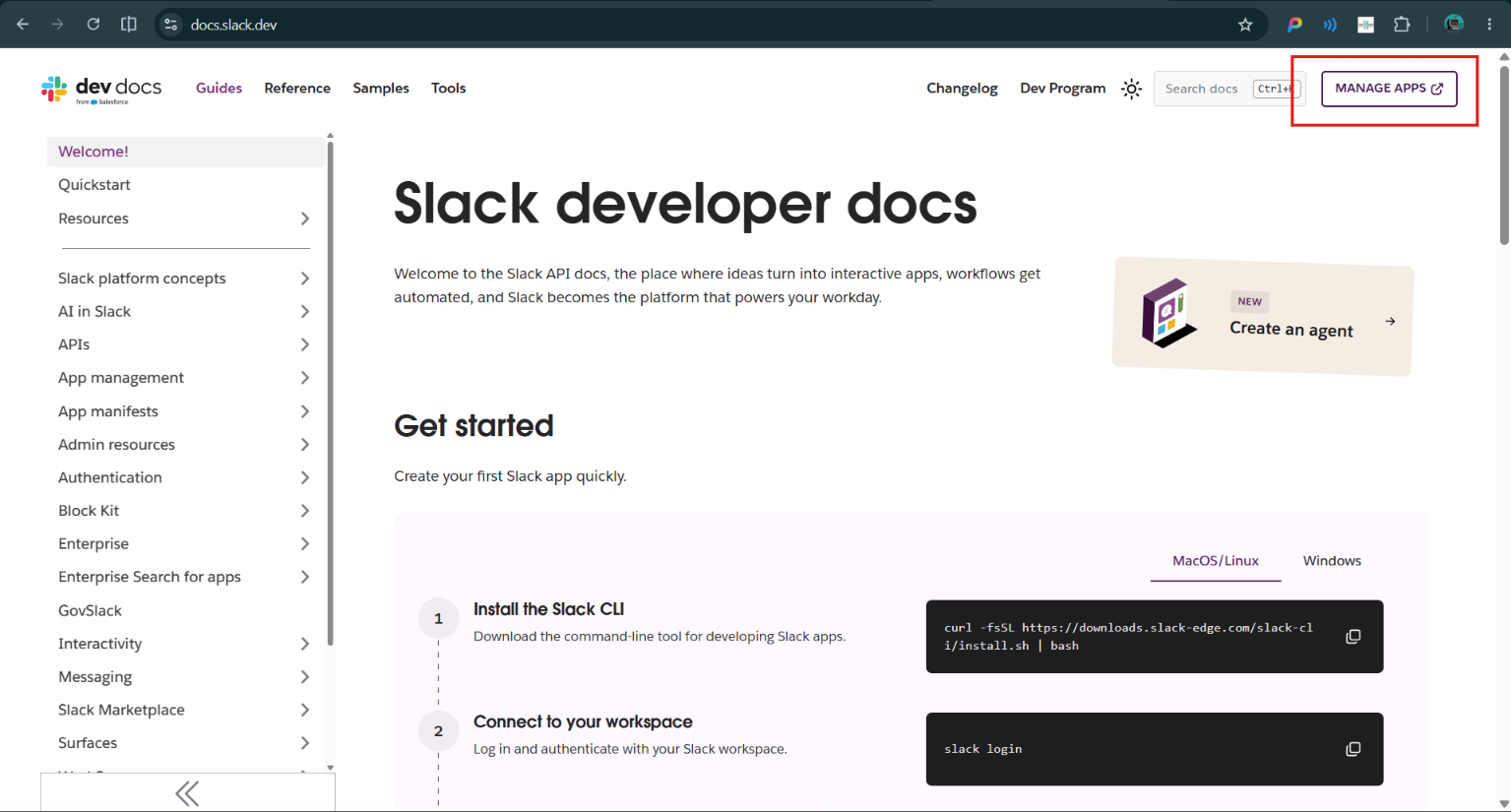
Open Slack apps
Go to https://api.slack.com/. If you land on developer docs instead of Your Apps, select Manage Apps.
Manage Apps on Slack developer docs
2
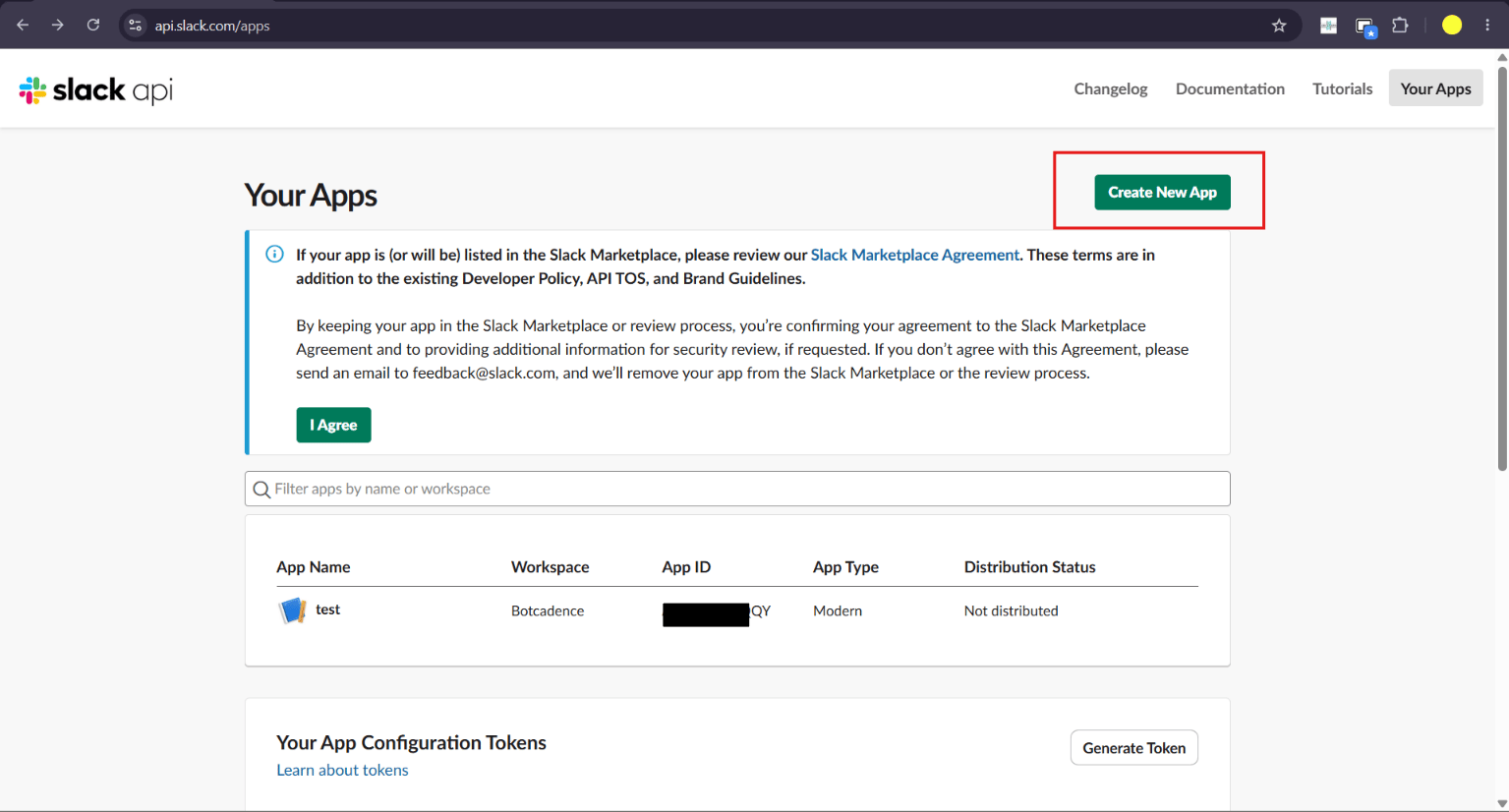
Create a new app
On Your Apps, select Create New App.
Your Apps
3
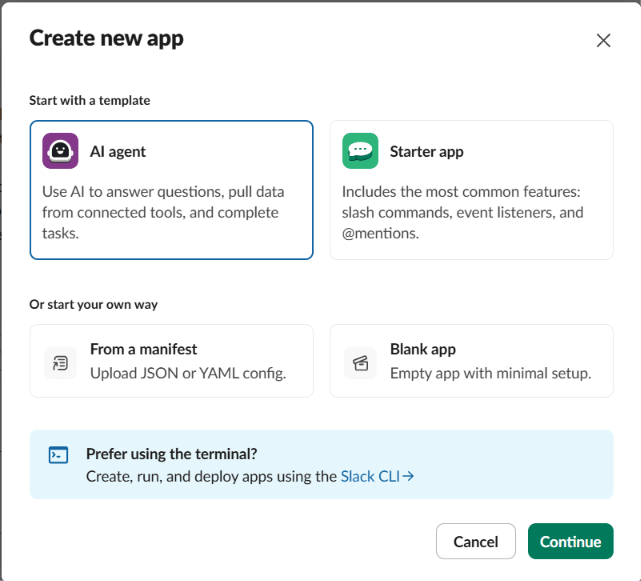
Choose how to create the app
Slack asks how you want to create the app. Select AI agent (or From scratch / From a manifest if that is what you use), then continue.
Create new app
4
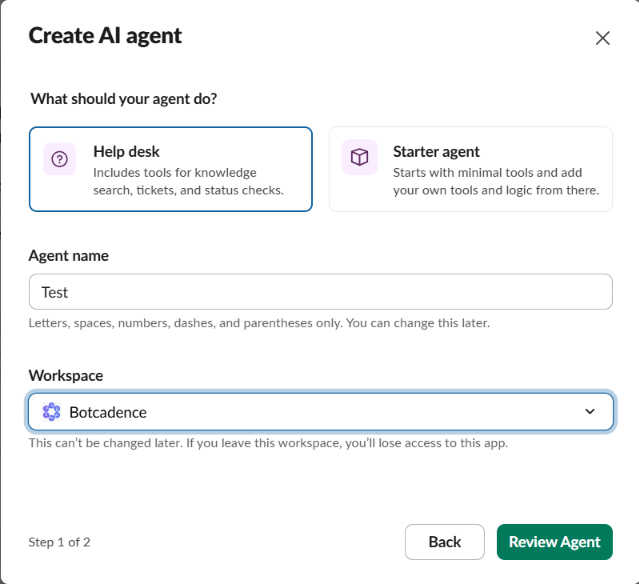
Name the agent and pick a workspace
Enter an agent name and select the Workspace where Botcadence should post. Continue.
Create AI agent
5
Create and install
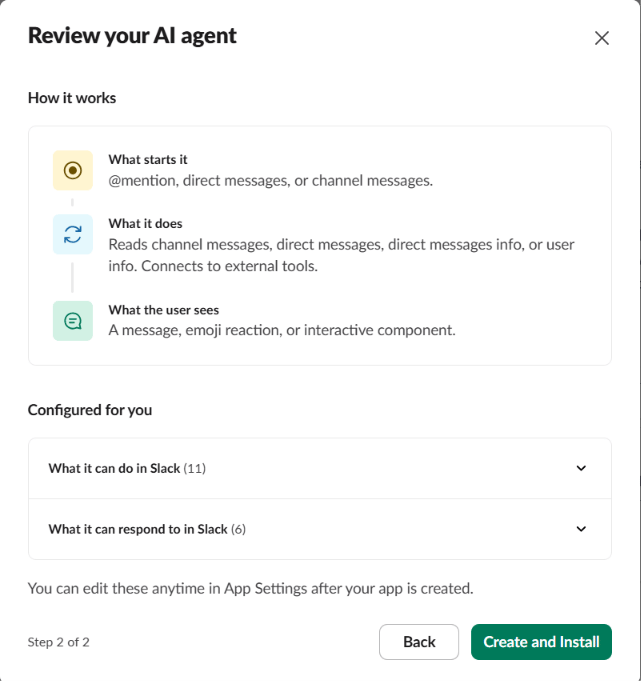
Review the agent, then select Create and Install. Approve the install in Slack when prompted.
Review your AI agent
6
Open OAuth & Permissions
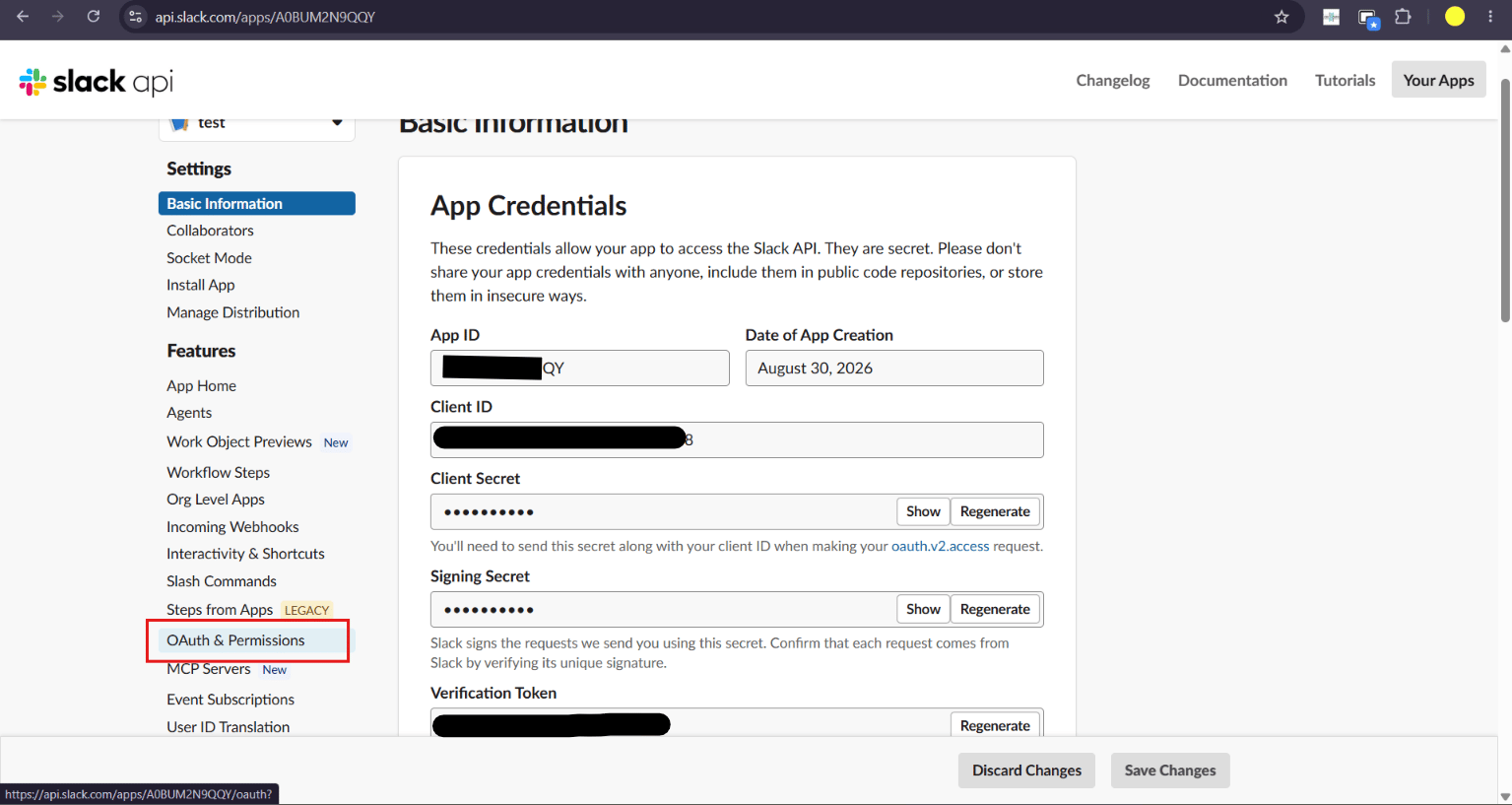
In the app sidebar under Features, select OAuth & Permissions.
OAuth & Permissions
7
Add bot token scopes
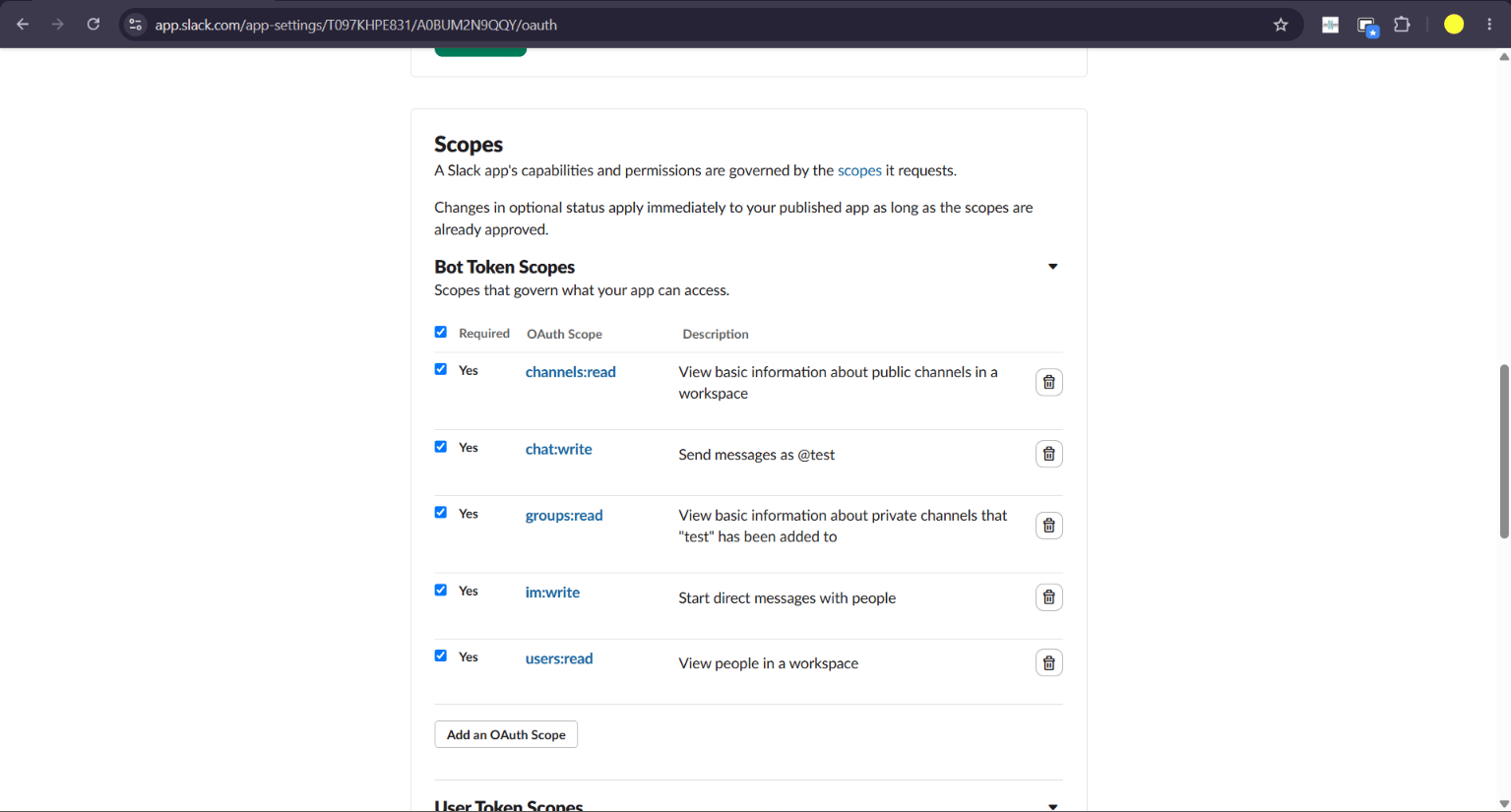
Under Bot Token Scopes, add these scopes if they are missing:
channels:read — list public channels
chat:write — post messages
groups:read — list private channels
im:write — send direct messages
users:read — list workspace members
An AI-agent template may add extra scopes. That is fine. Botcadence still needs these five.
Bot Token Scopes
8
Install and copy the token
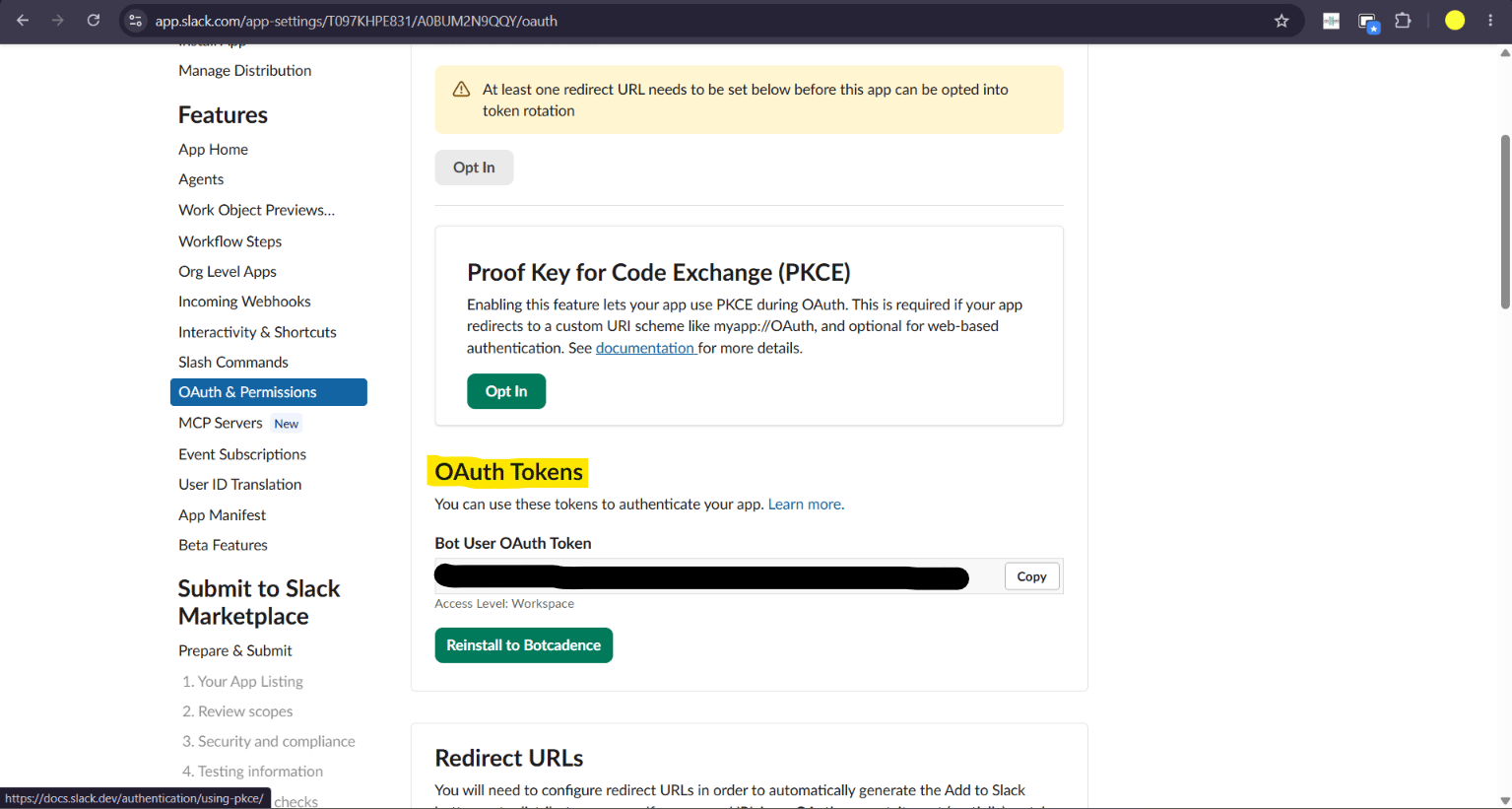
Scroll to OAuth Tokens. Install the app to the workspace (or Reinstall after you change scopes). Copy Bot User OAuth Token. It starts with xoxb-.
On an automation, pick this Slack connection, choose a member or a channel, and trigger a test. Confirm the DM or channel message arrives, and that the bot is in that channel.
Open Automations, enable Slack on the rule, select Slack integration, then choose member or channel and pick the destination. Invite the bot to the channel before the first post.
Enable Send Slack on chat AI Configuration or a workflow Tools tab. Select this Slack integration and a default member or channel. The agent can send to that default, or to another member or channel when the conversation needs it.
Confirm the token starts with xoxb- and the app is installed. Recopy the token. After you add scopes, Reinstall the app, then paste the new token.
Install is missing or OAuth Tokens is empty
Complete Create and Install, or select Install to Workspace on OAuth & Permissions. You need permission to install apps in that workspace.
Insufficient permissions
Add the five bot scopes, reinstall the app, and paste the updated token into Botcadence.
Channel messages never appear
Invite the bot into the channel. Private channels need groups:read and a bot membership.
I connected Slack under Channels but automations cannot send
Add Slack on Integrations with a bot token. Channel Slack does not replace the bot connection.
The agent cannot send Slack
Enable Send Slack, select this integration, and choose a default member or channel.
{"docsConfig":{"theme":"mint","$schema":"https://mintlify.com/docs.json","name":"Botcadence Documentation","colors":{"primary":"#627FFF","light":"#7A93FF","dark":"#865BFF"},"logo":{"light":"https://mintcdn.com/botcadence-a5dbc408/iHkTFwazb_v0uLzX/logo/botcadence-primary.png?fit=max\u0026auto=format\u0026n=iHkTFwazb_v0uLzX\u0026q=85\u0026s=621b6d82f2b83334218931ffd418efe8","dark":"https://mintcdn.com/botcadence-a5dbc408/iHkTFwazb_v0uLzX/logo/botcadence-white-logo.png?fit=max\u0026auto=format\u0026n=iHkTFwazb_v0uLzX\u0026q=85\u0026s=bb5ea0887626a159f78938bd363b4bf9"},"favicon":"https://mintcdn.com/botcadence-a5dbc408/qKuwZi_UUCvnGS13/favicon.ico?fit=max\u0026auto=format\u0026n=qKuwZi_UUCvnGS13\u0026q=85\u0026s=58ba9a71c74e4fd925f53c7071b247e6","api":{"playground":{"display":"interactive"},"examples":{"defaults":"required","languages":["curl","javascript","python"]},"mdx":{"auth":{"method":"key","name":"Authorization"},"server":["https://backend.botcadence.com"]}},"appearance":{"default":"dark"},"background":{"color":{"light":"#F7F9FC","dark":"#0B0D11"}},"navbar":{"links":[{"href":"https://botcadence.com/#features","label":"Features"},{"href":"https://botcadence.com/#how-it-works","label":"How It Works"},{"href":"https://botcadence.com/#pricing","label":"Pricing"}],"primary":{"type":"button","label":"Dashboard","href":"https://app.botcadence.com/login"}},"footer":{"socials":{"x":"https://x.com/botcadenceai","linkedin":"https://linkedin.com/company/botcadence"}},"styling":{"latex":false},"navigation":{"pages":[]}},"deployment":{"deploymentMetadataValue":{"subdomain":"botcadence-a5dbc408","hasAudioNarration":false,"actualSubdomain":"botcadence-a5dbc408","customDomains":["docs.botcadence.com"],"gitSource":{"type":"github","owner":"botifynow","repo":"botifynowai","deployBranch":"production","contentDirectory":"frontend/resources","isPrivate":true,"mountPath":"","label":""},"chroma":{"liveDeploymentHistoryId":"6ad66df3c8809c060cc46504","collectionId":"d93b00ff-6235-4b24-bb90-325c4b217086","schemaVersion":"v3","latestBuiltDeploymentHistoryId":"6ad66df3c8809c060cc46504"},"entitlements":{},"buildId":"6ad66df3c8809c060cc46504","clientVersion":"0.0.3965","searchFilterCounts":[{"language":"default","tag":"Documentation","count":141},{"language":"default","tag":"Build","count":56},{"language":"default","tag":"API Reference","count":27},{"language":"default","tag":"Workflows","count":25},{"language":"default","tag":"Integrations","count":23},{"language":"default","tag":"Tools","count":16},{"language":"default","tag":"Deploy","count":15},{"language":"default","tag":"Outreach","count":15},{"language":"default","tag":"Channels","count":13},{"language":"default","tag":"WhatsApp","count":8}]},"assistantConfig":{"enableAskAiButton":false,"enableStarterQuestions":false,"enableAskAiSearchBar":true},"hasChatPermissions":false,"hasWebMcpPermissions":false,"toggles":[{"name":"kill-isr","enabled":true,"variant":{"name":"disabled","enabled":false,"feature_enabled":true},"impressionData":false},{"name":"agent-mintlify-slack","enabled":true,"variant":{"name":"disabled","enabled":false,"feature_enabled":true},"impressionData":false},{"name":"editor-v7-file-tree","enabled":true,"variant":{"name":"disabled","enabled":false,"feature_enabled":true},"impressionData":false},{"name":"agent-integrations-settings","enabled":true,"variant":{"name":"disabled","enabled":false,"feature_enabled":true},"impressionData":false},{"name":"automations-pr-grouping","enabled":true,"variant":{"name":"disabled","enabled":false,"feature_enabled":true},"impressionData":false},{"name":"custom-prefix","enabled":true,"variant":{"name":"disabled","enabled":false,"feature_enabled":true},"impressionData":false},{"name":"analytics-v7","enabled":true,"variant":{"name":"disabled","enabled":false,"feature_enabled":true},"impressionData":false},{"name":"user-flows-analytics","enabled":true,"variant":{"name":"disabled","enabled":false,"feature_enabled":true},"impressionData":false},{"name":"no-publish-flow","enabled":true,"variant":{"name":"disabled","enabled":false,"feature_enabled":true},"impressionData":false},{"name":"workos-onboarding","enabled":true,"variant":{"name":"disabled","enabled":false,"feature_enabled":true},"impressionData":false},{"name":"llms-txt-v2","enabled":true,"variant":{"name":"disabled","enabled":false,"feature_enabled":true},"impressionData":false},{"name":"pause-universal-search-reconcile","enabled":true,"variant":{"name":"disabled","enabled":false,"feature_enabled":true},"impressionData":false},{"name":"snapshot-serving-live","enabled":true,"variant":{"name":"disabled","enabled":false,"feature_enabled":true},"impressionData":false},{"name":"stripTemperatureMiddleware","enabled":true,"variant":{"name":"disabled","enabled":false,"feature_enabled":true},"impressionData":false},{"name":"per-site-search-delta","enabled":true,"variant":{"name":"disabled","enabled":false,"feature_enabled":true},"impressionData":false},{"name":"support-platform-pylon-zendesk","enabled":true,"variant":{"name":"disabled","enabled":false,"feature_enabled":true},"impressionData":false},{"name":"snapshot-serving","enabled":true,"variant":{"name":"disabled","enabled":false,"feature_enabled":true},"impressionData":false},{"name":"instant-rollback","enabled":true,"variant":{"name":"disabled","enabled":false,"feature_enabled":true},"impressionData":false},{"name":"granular-notifications-server","enabled":true,"variant":{"name":"disabled","enabled":false,"feature_enabled":true},"impressionData":false},{"name":"granular-notifications","enabled":true,"variant":{"name":"disabled","enabled":false,"feature_enabled":true},"impressionData":false},{"name":"editor-private-page-search","enabled":true,"variant":{"name":"disabled","enabled":false,"feature_enabled":true},"impressionData":false},{"name":"automations-fable","enabled":true,"variant":{"name":"disabled","enabled":false,"feature_enabled":true},"impressionData":false},{"name":"fixed-ai-action-pricing","enabled":true,"variant":{"name":"disabled","enabled":false,"feature_enabled":true},"impressionData":false},{"name":"automation-resolve-merge-conflict","enabled":true,"variant":{"name":"disabled","enabled":false,"feature_enabled":true},"impressionData":false},{"name":"scoped-publishing","enabled":true,"variant":{"name":"disabled","enabled":false,"feature_enabled":true},"impressionData":false},{"name":"mintql","enabled":true,"variant":{"name":"disabled","enabled":false,"feature_enabled":true},"impressionData":false},{"name":"page-level-analytics","enabled":true,"variant":{"name":"disabled","enabled":false,"feature_enabled":true},"impressionData":false},{"name":"editor-version-history-v2","enabled":true,"variant":{"name":"disabled","enabled":false,"feature_enabled":true},"impressionData":false},{"name":"editor-nav-generations","enabled":true,"variant":{"name":"disabled","enabled":false,"feature_enabled":true},"impressionData":false},{"name":"billing-page-v2","enabled":true,"variant":{"name":"disabled","enabled":false,"feature_enabled":true},"impressionData":false},{"name":"workspace-projects","enabled":true,"variant":{"name":"disabled","enabled":false,"feature_enabled":true},"impressionData":false},{"name":"assistant-v5","enabled":true,"variant":{"name":"disabled","enabled":false,"feature_enabled":true},"impressionData":false},{"name":"byok-sep-25","enabled":true,"variant":{"name":"disabled","enabled":false,"feature_enabled":true},"impressionData":false},{"name":"fork-pr-previews","enabled":true,"variant":{"name":"disabled","enabled":false,"feature_enabled":true},"impressionData":false},{"name":"revalidation-jwt","enabled":true,"variant":{"name":"disabled","enabled":false,"feature_enabled":true},"impressionData":false},{"name":"vite-origin","enabled":true,"variant":{"name":"disabled","enabled":false,"feature_enabled":true},"impressionData":false},{"name":"editor-agent-model-picker","enabled":true,"variant":{"name":"disabled","enabled":false,"feature_enabled":true},"impressionData":false},{"name":"billing-updated-9-15","enabled":true,"variant":{"name":"disabled","enabled":false,"feature_enabled":true},"impressionData":false},{"name":"hobby-abuse-scan","enabled":true,"variant":{"name":"disabled","enabled":false,"feature_enabled":true},"impressionData":false},{"name":"dashboard-inbox","enabled":true,"variant":{"name":"disabled","enabled":false,"feature_enabled":true},"impressionData":false}],"isAtlas":false,"googleFontsInlined":false},"customCss":[{"filePath":"styles.css","content":".dark,.dark body,html.dark,html.dark #__next,html.dark #content-area,html.dark aside,html.dark body,html.dark header,html.dark nav{background-color:#0b0d11!important}:root.dark,html.dark{--background:#0B0D11;--background-color:#0B0D11}.blog-container{margin-top:2rem}.hero-card{position:relative;width:100%;height:450px;border-radius:24px;overflow:hidden;margin-bottom:3rem;display:flex;align-items:flex-end;background:#111;transition:transform .3s ease;border:1px solid rgba(255,255,255,.1)}.hero-card:hover{transform:translateY(-4px);border-color:rgba(255,255,255,.2)}.hero-bg{position:absolute;top:0;left:0;width:100%;height:100%;object-fit:cover;opacity:.6;transition:opacity .3s ease}.hero-card:hover .hero-bg{opacity:.8}.hero-content{position:relative;z-index:2;padding:3rem;width:100%;background:linear-gradient(to top,rgba(11,13,17,.9) 0,rgba(11,13,17,.4) 50%,transparent 100%)}.post-meta{font-size:.875rem;color:#94a3b8;margin-bottom:.5rem;font-weight:500}.hero-title{font-size:2.25rem;font-weight:700;color:#fff;margin-bottom:1rem;line-height:1.2}.hero-excerpt{font-size:1.125rem;color:#cbd5e1;margin-bottom:1.5rem;max-width:600px;line-height:1.6}.author{display:flex;align-items:center;gap:.75rem}.avatar{width:40px;height:40px;border-radius:50%;border:2px solid rgba(255,255,255,.1)}.author-name{font-weight:600;color:#fff;font-size:.9375rem}.author-role{font-size:.8125rem;color:#94a3b8}.filter-bar{display:flex;gap:1rem;margin-bottom:2.5rem;overflow-x:auto;padding-bottom:.5rem}.filter-item{padding:.5rem 1rem;border-radius:9999px;font-size:.875rem;font-weight:500;color:#94a3b8;cursor:pointer;transition:all .2s;white-space:nowrap}.filter-item:hover{color:#000;background:rgba(0,0,0,.05)}.dark .filter-item:hover{color:#fff;background:rgba(255,255,255,.05)}.filter-item.active{background:#000;color:#fff}.dark .filter-item.active{background:#fff;color:#000}.card-image{width:100%;height:200px;object-fit:cover;border-radius:12px;margin-bottom:1rem}.card-tag{font-size:.75rem;font-weight:700;letter-spacing:.05em;color:#627fff;margin-bottom:.5rem;text-transform:uppercase}.dark #content-area .prose .CardGroup .Card{background:rgba(255,255,255,.03)!important;border:1px solid rgba(255,255,255,.05)!important;border-radius:20px!important;padding:1.5rem!important;transition:all .3s ease!important}.dark #content-area .prose .CardGroup .Card:hover{border-color:rgba(255,255,255,.2)!important;background:rgba(255,255,255,.05)!important;transform:translateY(-4px)}#content-area .blog-container,#content-area .blog-post-header,#content-area .blog-post-layout,#content-area .blog-post-main,body #content-area .blog-post-header,body #content-area .blog-post-layout,body #content-area .blog-post-main{max-width:none!important;width:100%!important}#content-area .prose .blog-post-layout,#content-area .prose .blog-post-main,#content-area .prose.blog-post-main{max-width:none!important}#content-area:has(.blog-container),#content-area:has(.blog-post-layout){max-width:100%!important}#content-area .prose,#content-area.prose{max-width:100%!important}.back-link{display:flex;align-items:center;gap:.5rem;color:#94a3b8;font-size:.875rem;font-weight:500;margin-bottom:2rem;text-decoration:none;transition:color .2s}.back-link:hover{color:#627fff}.dark .back-link:hover,.dark .blog-post-title,.dark .more-posts-section h3{color:#fff}.back-arrow{font-size:1.25rem}.blog-post-header{margin-bottom:3rem;max-width:none;width:100%}.blog-post-breadcrumbs{display:flex;align-items:center;gap:.5rem;font-size:.75rem;font-weight:700;letter-spacing:.05em;margin-bottom:1.5rem}.breadcrumb-category{color:#00ba88}.breadcrumb-separator{color:#4b5563}.breadcrumb-date{color:#94a3b8}.blog-post-title{font-size:3rem;font-weight:800;line-height:1.1;margin-bottom:1.5rem}.blog-post-date{font-size:.75rem;font-weight:600;color:#94a3b8;text-transform:uppercase;letter-spacing:.05em}.blog-post-layout{display:grid;grid-template-columns:1fr 280px;gap:4rem;align-items:flex-start;max-width:1400px;width:100%;margin:0 auto}.blog-post-main{max-width:none;width:100%}.blog-post-hero-image{width:100%;border-radius:24px;margin-bottom:3rem;border:1px solid rgba(255,255,255,.1)}.blog-info-box{background:rgba(0,186,136,.05);border-left:4px solid #00ba88;padding:1.5rem 2rem;border-radius:12px;margin-bottom:2.5rem}.info-tag{color:#00ba88;font-weight:700;font-size:.75rem;text-transform:uppercase;margin-bottom:.5rem}.blog-info-box p{margin:0!important;color:#cbd5e1;line-height:1.6}.blog-post-text{font-size:1.125rem;line-height:1.7;margin-bottom:2.5rem}.dark .blog-post-text{color:#cbd5e1}.blog-video-container{margin:3rem 0;border-radius:24px;overflow:hidden;border:1px solid rgba(255,255,255,.1)}.more-posts-section{margin-top:5rem;padding-top:3rem;border-top:1px solid rgba(255,255,255,.05)}.more-posts-section h3{font-size:1.5rem;font-weight:700;margin-bottom:2rem}.blog-post-sidebar{position:sticky;top:6rem}.author-card{padding:1.5rem;border-radius:20px}.dark .author-card{background:rgba(255,255,255,.02);border:1px solid rgba(255,255,255,.05)}.author-avatar-large{width:64px;height:64px;border-radius:50%;margin-bottom:1rem}.author-info{margin-bottom:1.5rem}.author-name-large{font-weight:700;font-size:1.125rem}.dark .author-name-large{color:#fff}.author-role-large{color:#94a3b8;font-size:.875rem}.author-socials{display:flex;gap:1rem;font-size:.75rem;font-weight:600;color:#627fff}@media (max-width:1024px){.blog-post-layout{grid-template-columns:1fr}.blog-post-sidebar{position:static;margin-top:3rem}}"}],"page":{"pagePath":"docs/build/integrations/slack","slug":"/docs/build/integrations/slack","pageMetadata":{"title":"Slack","description":"Send automation notifications and agent messages to Slack members or channels","href":"/docs/build/integrations/slack"},"description":{"compiledSource":"\"use strict\";\nconst {jsx: _jsx} = arguments[0];\nconst {useMDXComponents: _provideComponents} = arguments[0];\nfunction _createMdxContent(props) {\n const _components = {\n p: \"p\",\n ..._provideComponents(),\n ...props.components\n };\n return _jsx(_components.p, {\n children: \"Send automation notifications and agent messages to Slack members or channels\"\n });\n}\nfunction MDXContent(props = {}) {\n const {wrapper: MDXLayout} = {\n ..._provideComponents(),\n ...props.components\n };\n return MDXLayout ? _jsx(MDXLayout, {\n ...props,\n children: _jsx(_createMdxContent, {\n ...props\n })\n }) : _createMdxContent(props);\n}\nreturn {\n default: MDXContent\n};\n","frontmatter":{},"scope":{}},"pageType":"default","mdx":{"mdxSource":{"compiledSource":"\"use strict\";const{Fragment:_Fragment,jsx:_jsx,jsxs:_jsxs}=arguments[0];const{useMDXComponents:_provideComponents}=arguments[0];function _createMdxContent(props){const _components={a:`a`,code:`code`,li:`li`,p:`p`,strong:`strong`,ul:`ul`,..._provideComponents(),...props.components},{Accordion,AccordionGroup,Check,Frame,Heading,OptimizedImage,Step,Steps,Warning}=_components;if(!Accordion)_missingMdxReference(`Accordion`,true);if(!AccordionGroup)_missingMdxReference(`AccordionGroup`,true);if(!Check)_missingMdxReference(`Check`,true);if(!Frame)_missingMdxReference(`Frame`,true);if(!Heading)_missingMdxReference(`Heading`,true);if(!OptimizedImage)_missingMdxReference(`OptimizedImage`,true);if(!Step)_missingMdxReference(`Step`,true);if(!Steps)_missingMdxReference(`Steps`,true);if(!Warning)_missingMdxReference(`Warning`,true);return _jsxs(_Fragment,{children:[_jsxs(_components.p,{children:[`Slack on `,_jsx(_components.strong,{children:`Integrations`}),` connects a small helper account, called a `,_jsx(_components.strong,{children:`bot`}),`, so Botcadence can send private messages and channel messages. Use it for `,_jsx(_components.strong,{children:`Automations`}),` and the `,_jsx(_components.strong,{children:`Send Slack`}),` agent tool.`]}),`\n`,_jsxs(_components.p,{children:[`This is not inbound Slack chat. To receive workspace messages in Conversations, connect `,_jsx(_components.strong,{children:`Slack`}),` under `,_jsx(_components.a,{href:`/docs/deploy/channels/slack`,children:`Channels`}),`.`]}),`\n`,_jsx(Warning,{children:_jsxs(_components.p,{children:[`Paste a `,_jsx(_components.strong,{children:`Bot User OAuth Token`}),` that starts with `,_jsx(_components.code,{children:`xoxb-`}),`. This is not Slack Sign-in for the dashboard. Do not share the token or include it in screenshots.`]})}),`\n`,_jsx(Heading,{level:`2`,id:`prerequisites`,children:`Prerequisites`}),`\n`,_jsxs(_components.ul,{children:[`\n`,_jsx(_components.li,{children:`Permission to create a Slack app and install it to the workspace`}),`\n`,_jsxs(_components.li,{children:[`These bot scopes: `,_jsx(_components.strong,{children:`chat:write`}),`, `,_jsx(_components.strong,{children:`im:write`}),`, `,_jsx(_components.strong,{children:`users:read`}),`, `,_jsx(_components.strong,{children:`channels:read`}),`, and `,_jsx(_components.strong,{children:`groups:read`}),` (needed for private channels)`]}),`\n`,_jsx(_components.li,{children:`The bot invited into every channel you want to post in`}),`\n`]}),`\n`,_jsx(Heading,{level:`2`,id:`get-a-bot-user-oauth-token`,children:`Get a Bot User OAuth Token`}),`\n`,_jsxs(_components.p,{children:[`Slack’s create-app screens change over time. The steps below match the current `,_jsx(_components.strong,{children:`Create New App`}),` flow (including `,_jsx(_components.strong,{children:`AI agent`}),`). If you already have an app, open it and jump to `,_jsx(_components.strong,{children:`OAuth \u0026 Permissions`}),`.`]}),`\n`,_jsxs(Steps,{children:[_jsxs(Step,{title:`Open Slack apps`,children:[_jsxs(_components.p,{children:[`Go to `,_jsx(_components.a,{href:`https://api.slack.com/`,children:`https://api.slack.com/`}),`. If you land on developer docs instead of Your Apps, select `,_jsx(_components.strong,{children:`Manage Apps`}),`.`]}),_jsx(Frame,{caption:`Manage Apps on Slack developer docs`,children:_jsx(OptimizedImage,{src:`https://mintcdn.com/botcadence-a5dbc408/AeM72HIu2MFiWmUh/images/slack-oauth-01-manage-apps.png?fit=max\u0026auto=format\u0026n=AeM72HIu2MFiWmUh\u0026q=85\u0026s=eef6afd29cc9dc8cfa5abfd6c234952d`,alt:`Slack developer docs with Manage Apps in the top right`,\"data-og-width\":`1535`,width:`1535`,\"data-og-height\":`825`,height:`825`,\"data-path\":`images/slack-oauth-01-manage-apps.png`,\"data-optimize\":`true`,\"data-opv\":`3`,srcset:`https://mintcdn.com/botcadence-a5dbc408/AeM72HIu2MFiWmUh/images/slack-oauth-01-manage-apps.png?w=280\u0026fit=max\u0026auto=format\u0026n=AeM72HIu2MFiWmUh\u0026q=85\u0026s=6d367e141b9a7de48a174a33a527043f 280w, https://mintcdn.com/botcadence-a5dbc408/AeM72HIu2MFiWmUh/images/slack-oauth-01-manage-apps.png?w=560\u0026fit=max\u0026auto=format\u0026n=AeM72HIu2MFiWmUh\u0026q=85\u0026s=057332ba1fa2a26959a13678dcb1be92 560w, https://mintcdn.com/botcadence-a5dbc408/AeM72HIu2MFiWmUh/images/slack-oauth-01-manage-apps.png?w=840\u0026fit=max\u0026auto=format\u0026n=AeM72HIu2MFiWmUh\u0026q=85\u0026s=613eb933adec164b454e1aaa78dd4540 840w, https://mintcdn.com/botcadence-a5dbc408/AeM72HIu2MFiWmUh/images/slack-oauth-01-manage-apps.png?w=1100\u0026fit=max\u0026auto=format\u0026n=AeM72HIu2MFiWmUh\u0026q=85\u0026s=58a63a3cb62e539562df54222d142477 1100w, https://mintcdn.com/botcadence-a5dbc408/AeM72HIu2MFiWmUh/images/slack-oauth-01-manage-apps.png?w=1650\u0026fit=max\u0026auto=format\u0026n=AeM72HIu2MFiWmUh\u0026q=85\u0026s=475308d47e25556588fb7ddac97bc2a6 1650w, https://mintcdn.com/botcadence-a5dbc408/AeM72HIu2MFiWmUh/images/slack-oauth-01-manage-apps.png?w=2500\u0026fit=max\u0026auto=format\u0026n=AeM72HIu2MFiWmUh\u0026q=85\u0026s=b9123580e3c1b7febfe0f6947ebd3321 2500w`})})]}),_jsxs(Step,{title:`Create a new app`,children:[_jsxs(_components.p,{children:[`On `,_jsx(_components.strong,{children:`Your Apps`}),`, select `,_jsx(_components.strong,{children:`Create New App`}),`.`]}),_jsx(Frame,{caption:`Your Apps`,children:_jsx(OptimizedImage,{src:`https://mintcdn.com/botcadence-a5dbc408/AeM72HIu2MFiWmUh/images/slack-oauth-02-create-new-app.png?fit=max\u0026auto=format\u0026n=AeM72HIu2MFiWmUh\u0026q=85\u0026s=32f3d50a9949483e077d4d6630e20084`,alt:`Slack Your Apps page with Create New App`,\"data-og-width\":`1535`,width:`1535`,\"data-og-height\":`826`,height:`826`,\"data-path\":`images/slack-oauth-02-create-new-app.png`,\"data-optimize\":`true`,\"data-opv\":`3`,srcset:`https://mintcdn.com/botcadence-a5dbc408/AeM72HIu2MFiWmUh/images/slack-oauth-02-create-new-app.png?w=280\u0026fit=max\u0026auto=format\u0026n=AeM72HIu2MFiWmUh\u0026q=85\u0026s=8ef670cd3e35841124dcf3009ed84c8a 280w, https://mintcdn.com/botcadence-a5dbc408/AeM72HIu2MFiWmUh/images/slack-oauth-02-create-new-app.png?w=560\u0026fit=max\u0026auto=format\u0026n=AeM72HIu2MFiWmUh\u0026q=85\u0026s=bdd6e5265655d7f6e70166751b816fd5 560w, https://mintcdn.com/botcadence-a5dbc408/AeM72HIu2MFiWmUh/images/slack-oauth-02-create-new-app.png?w=840\u0026fit=max\u0026auto=format\u0026n=AeM72HIu2MFiWmUh\u0026q=85\u0026s=a13a60d50fc7daa2295c09ed6c9724f5 840w, https://mintcdn.com/botcadence-a5dbc408/AeM72HIu2MFiWmUh/images/slack-oauth-02-create-new-app.png?w=1100\u0026fit=max\u0026auto=format\u0026n=AeM72HIu2MFiWmUh\u0026q=85\u0026s=a6c719815717eeac822779744fd77219 1100w, https://mintcdn.com/botcadence-a5dbc408/AeM72HIu2MFiWmUh/images/slack-oauth-02-create-new-app.png?w=1650\u0026fit=max\u0026auto=format\u0026n=AeM72HIu2MFiWmUh\u0026q=85\u0026s=e741c153add7dbb7c7dcf44a9c95c868 1650w, https://mintcdn.com/botcadence-a5dbc408/AeM72HIu2MFiWmUh/images/slack-oauth-02-create-new-app.png?w=2500\u0026fit=max\u0026auto=format\u0026n=AeM72HIu2MFiWmUh\u0026q=85\u0026s=da4eb50a744b0d9b544a42e3cce9a312 2500w`})})]}),_jsxs(Step,{title:`Choose how to create the app`,children:[_jsxs(_components.p,{children:[`Slack asks how you want to create the app. Select `,_jsx(_components.strong,{children:`AI agent`}),` (or `,_jsx(_components.strong,{children:`From scratch`}),` / `,_jsx(_components.strong,{children:`From a manifest`}),` if that is what you use), then continue.`]}),_jsx(Frame,{caption:`Create new app`,children:_jsx(OptimizedImage,{src:`https://mintcdn.com/botcadence-a5dbc408/AeM72HIu2MFiWmUh/images/slack-oauth-03-app-type.png?fit=max\u0026auto=format\u0026n=AeM72HIu2MFiWmUh\u0026q=85\u0026s=19fff8e6ac278ce6b0ebd3b87fe1d2ef`,alt:`Create new app dialog with AI agent selected`,\"data-og-width\":`641`,width:`641`,\"data-og-height\":`581`,height:`581`,\"data-path\":`images/slack-oauth-03-app-type.png`,\"data-optimize\":`true`,\"data-opv\":`3`,srcset:`https://mintcdn.com/botcadence-a5dbc408/AeM72HIu2MFiWmUh/images/slack-oauth-03-app-type.png?w=280\u0026fit=max\u0026auto=format\u0026n=AeM72HIu2MFiWmUh\u0026q=85\u0026s=0900eb0b341bf206782f8904f346cb19 280w, https://mintcdn.com/botcadence-a5dbc408/AeM72HIu2MFiWmUh/images/slack-oauth-03-app-type.png?w=560\u0026fit=max\u0026auto=format\u0026n=AeM72HIu2MFiWmUh\u0026q=85\u0026s=68faf5481a284408661eecbcb8db0739 560w, https://mintcdn.com/botcadence-a5dbc408/AeM72HIu2MFiWmUh/images/slack-oauth-03-app-type.png?w=840\u0026fit=max\u0026auto=format\u0026n=AeM72HIu2MFiWmUh\u0026q=85\u0026s=ac9989c10dbfa27d43a4e2900744d94e 840w, https://mintcdn.com/botcadence-a5dbc408/AeM72HIu2MFiWmUh/images/slack-oauth-03-app-type.png?w=1100\u0026fit=max\u0026auto=format\u0026n=AeM72HIu2MFiWmUh\u0026q=85\u0026s=f149d5a7bedcf1c8b1fa028556293990 1100w, https://mintcdn.com/botcadence-a5dbc408/AeM72HIu2MFiWmUh/images/slack-oauth-03-app-type.png?w=1650\u0026fit=max\u0026auto=format\u0026n=AeM72HIu2MFiWmUh\u0026q=85\u0026s=e5232c5d74dda101ecb8e68d0a493327 1650w, https://mintcdn.com/botcadence-a5dbc408/AeM72HIu2MFiWmUh/images/slack-oauth-03-app-type.png?w=2500\u0026fit=max\u0026auto=format\u0026n=AeM72HIu2MFiWmUh\u0026q=85\u0026s=9aa15bf9e5460a97d52addaae6d041e5 2500w`})})]}),_jsxs(Step,{title:`Name the agent and pick a workspace`,children:[_jsxs(_components.p,{children:[`Enter an agent name and select the `,_jsx(_components.strong,{children:`Workspace`}),` where Botcadence should post. Continue.`]}),_jsx(Frame,{caption:`Create AI agent`,children:_jsx(OptimizedImage,{src:`https://mintcdn.com/botcadence-a5dbc408/AeM72HIu2MFiWmUh/images/slack-oauth-04-agent-name-workspace.png?fit=max\u0026auto=format\u0026n=AeM72HIu2MFiWmUh\u0026q=85\u0026s=805f3455e75c48be593ce40954db8c42`,alt:`Create AI agent form with name and workspace`,\"data-og-width\":`639`,width:`639`,\"data-og-height\":`584`,height:`584`,\"data-path\":`images/slack-oauth-04-agent-name-workspace.png`,\"data-optimize\":`true`,\"data-opv\":`3`,srcset:`https://mintcdn.com/botcadence-a5dbc408/AeM72HIu2MFiWmUh/images/slack-oauth-04-agent-name-workspace.png?w=280\u0026fit=max\u0026auto=format\u0026n=AeM72HIu2MFiWmUh\u0026q=85\u0026s=e423bd67aaba81d0602b20b24a473b89 280w, https://mintcdn.com/botcadence-a5dbc408/AeM72HIu2MFiWmUh/images/slack-oauth-04-agent-name-workspace.png?w=560\u0026fit=max\u0026auto=format\u0026n=AeM72HIu2MFiWmUh\u0026q=85\u0026s=5b39b23598896597a13d0c69d5c4f14b 560w, https://mintcdn.com/botcadence-a5dbc408/AeM72HIu2MFiWmUh/images/slack-oauth-04-agent-name-workspace.png?w=840\u0026fit=max\u0026auto=format\u0026n=AeM72HIu2MFiWmUh\u0026q=85\u0026s=bd98d71d277904a06485da1a6bc4ec81 840w, https://mintcdn.com/botcadence-a5dbc408/AeM72HIu2MFiWmUh/images/slack-oauth-04-agent-name-workspace.png?w=1100\u0026fit=max\u0026auto=format\u0026n=AeM72HIu2MFiWmUh\u0026q=85\u0026s=12cfa595f485be7afad85935ea982951 1100w, https://mintcdn.com/botcadence-a5dbc408/AeM72HIu2MFiWmUh/images/slack-oauth-04-agent-name-workspace.png?w=1650\u0026fit=max\u0026auto=format\u0026n=AeM72HIu2MFiWmUh\u0026q=85\u0026s=7163f488b28d24124eda84dc0ec34d2b 1650w, https://mintcdn.com/botcadence-a5dbc408/AeM72HIu2MFiWmUh/images/slack-oauth-04-agent-name-workspace.png?w=2500\u0026fit=max\u0026auto=format\u0026n=AeM72HIu2MFiWmUh\u0026q=85\u0026s=2e74689d921dec98c1927359a51ab2df 2500w`})})]}),_jsxs(Step,{title:`Create and install`,children:[_jsxs(_components.p,{children:[`Review the agent, then select `,_jsx(_components.strong,{children:`Create and Install`}),`. Approve the install in Slack when prompted.`]}),_jsx(Frame,{caption:`Review your AI agent`,children:_jsx(OptimizedImage,{src:`https://mintcdn.com/botcadence-a5dbc408/AeM72HIu2MFiWmUh/images/slack-oauth-05-review-create-install.png?fit=max\u0026auto=format\u0026n=AeM72HIu2MFiWmUh\u0026q=85\u0026s=cf02328116ef4ff0f37a66489ca67ffc`,alt:`Review your AI agent with Create and Install`,\"data-og-width\":`641`,width:`641`,\"data-og-height\":`681`,height:`681`,\"data-path\":`images/slack-oauth-05-review-create-install.png`,\"data-optimize\":`true`,\"data-opv\":`3`,srcset:`https://mintcdn.com/botcadence-a5dbc408/AeM72HIu2MFiWmUh/images/slack-oauth-05-review-create-install.png?w=280\u0026fit=max\u0026auto=format\u0026n=AeM72HIu2MFiWmUh\u0026q=85\u0026s=6c2b01b1e7bf162f0c5bba20d40349f1 280w, https://mintcdn.com/botcadence-a5dbc408/AeM72HIu2MFiWmUh/images/slack-oauth-05-review-create-install.png?w=560\u0026fit=max\u0026auto=format\u0026n=AeM72HIu2MFiWmUh\u0026q=85\u0026s=b089cfad0416adb44e18d34583fa81bb 560w, https://mintcdn.com/botcadence-a5dbc408/AeM72HIu2MFiWmUh/images/slack-oauth-05-review-create-install.png?w=840\u0026fit=max\u0026auto=format\u0026n=AeM72HIu2MFiWmUh\u0026q=85\u0026s=5b8da5fca6cc555593df15b50da25b54 840w, https://mintcdn.com/botcadence-a5dbc408/AeM72HIu2MFiWmUh/images/slack-oauth-05-review-create-install.png?w=1100\u0026fit=max\u0026auto=format\u0026n=AeM72HIu2MFiWmUh\u0026q=85\u0026s=e00509bcc697ec99d113f433163a53f0 1100w, https://mintcdn.com/botcadence-a5dbc408/AeM72HIu2MFiWmUh/images/slack-oauth-05-review-create-install.png?w=1650\u0026fit=max\u0026auto=format\u0026n=AeM72HIu2MFiWmUh\u0026q=85\u0026s=bbd80987cf07505451326183084adad8 1650w, https://mintcdn.com/botcadence-a5dbc408/AeM72HIu2MFiWmUh/images/slack-oauth-05-review-create-install.png?w=2500\u0026fit=max\u0026auto=format\u0026n=AeM72HIu2MFiWmUh\u0026q=85\u0026s=a0c1b93084a3bd7f3b69c1f80dd40140 2500w`})})]}),_jsxs(Step,{title:`Open OAuth \u0026 Permissions`,children:[_jsxs(_components.p,{children:[`In the app sidebar under `,_jsx(_components.strong,{children:`Features`}),`, select `,_jsx(_components.strong,{children:`OAuth \u0026 Permissions`}),`.`]}),_jsx(Frame,{caption:`OAuth \u0026 Permissions`,children:_jsx(OptimizedImage,{src:`https://mintcdn.com/botcadence-a5dbc408/AeM72HIu2MFiWmUh/images/slack-oauth-06-oauth-permissions.png?fit=max\u0026auto=format\u0026n=AeM72HIu2MFiWmUh\u0026q=85\u0026s=caf3ed8230c962e1aa9ca7fef6ce2a20`,alt:`Slack app Basic Information with OAuth and Permissions in the sidebar`,\"data-og-width\":`1535`,width:`1535`,\"data-og-height\":`817`,height:`817`,\"data-path\":`images/slack-oauth-06-oauth-permissions.png`,\"data-optimize\":`true`,\"data-opv\":`3`,srcset:`https://mintcdn.com/botcadence-a5dbc408/AeM72HIu2MFiWmUh/images/slack-oauth-06-oauth-permissions.png?w=280\u0026fit=max\u0026auto=format\u0026n=AeM72HIu2MFiWmUh\u0026q=85\u0026s=293f7fc29d02455d76b7c8a0972a736e 280w, https://mintcdn.com/botcadence-a5dbc408/AeM72HIu2MFiWmUh/images/slack-oauth-06-oauth-permissions.png?w=560\u0026fit=max\u0026auto=format\u0026n=AeM72HIu2MFiWmUh\u0026q=85\u0026s=160534b6d3b19d60dfd78ddd41a6af35 560w, https://mintcdn.com/botcadence-a5dbc408/AeM72HIu2MFiWmUh/images/slack-oauth-06-oauth-permissions.png?w=840\u0026fit=max\u0026auto=format\u0026n=AeM72HIu2MFiWmUh\u0026q=85\u0026s=4db4331b49dc6ae1c9f4d74d5cc4226f 840w, https://mintcdn.com/botcadence-a5dbc408/AeM72HIu2MFiWmUh/images/slack-oauth-06-oauth-permissions.png?w=1100\u0026fit=max\u0026auto=format\u0026n=AeM72HIu2MFiWmUh\u0026q=85\u0026s=fa0493007054a97dfaf76fb1cc0202e1 1100w, https://mintcdn.com/botcadence-a5dbc408/AeM72HIu2MFiWmUh/images/slack-oauth-06-oauth-permissions.png?w=1650\u0026fit=max\u0026auto=format\u0026n=AeM72HIu2MFiWmUh\u0026q=85\u0026s=f3c8474c92aabcd75a0b8d0241966d0d 1650w, https://mintcdn.com/botcadence-a5dbc408/AeM72HIu2MFiWmUh/images/slack-oauth-06-oauth-permissions.png?w=2500\u0026fit=max\u0026auto=format\u0026n=AeM72HIu2MFiWmUh\u0026q=85\u0026s=b33a0255c3d2288a4fb8e3a9ada2b863 2500w`})})]}),_jsxs(Step,{title:`Add bot token scopes`,children:[_jsxs(_components.p,{children:[`Under `,_jsx(_components.strong,{children:`Bot Token Scopes`}),`, add these scopes if they are missing:`]}),_jsxs(_components.ul,{children:[`\n`,_jsxs(_components.li,{children:[_jsx(_components.strong,{children:`channels:read`}),` — list public channels`]}),`\n`,_jsxs(_components.li,{children:[_jsx(_components.strong,{children:`chat:write`}),` — post messages`]}),`\n`,_jsxs(_components.li,{children:[_jsx(_components.strong,{children:`groups:read`}),` — list private channels`]}),`\n`,_jsxs(_components.li,{children:[_jsx(_components.strong,{children:`im:write`}),` — send direct messages`]}),`\n`,_jsxs(_components.li,{children:[_jsx(_components.strong,{children:`users:read`}),` — list workspace members`]}),`\n`]}),_jsx(_components.p,{children:`An AI-agent template may add extra scopes. That is fine. Botcadence still needs these five.`}),_jsx(Frame,{caption:`Bot Token Scopes`,children:_jsx(OptimizedImage,{src:`https://mintcdn.com/botcadence-a5dbc408/AeM72HIu2MFiWmUh/images/slack-oauth-07-bot-token-scopes.png?fit=max\u0026auto=format\u0026n=AeM72HIu2MFiWmUh\u0026q=85\u0026s=5fca8b5b6b8d09085515d3baf0ce19dd`,alt:`Bot Token Scopes list including chat write, im write, users read, channels read, and groups read`,\"data-og-width\":`1535`,width:`1535`,\"data-og-height\":`825`,height:`825`,\"data-path\":`images/slack-oauth-07-bot-token-scopes.png`,\"data-optimize\":`true`,\"data-opv\":`3`,srcset:`https://mintcdn.com/botcadence-a5dbc408/AeM72HIu2MFiWmUh/images/slack-oauth-07-bot-token-scopes.png?w=280\u0026fit=max\u0026auto=format\u0026n=AeM72HIu2MFiWmUh\u0026q=85\u0026s=aeaf9705ceb320c945e736a45c7472c4 280w, https://mintcdn.com/botcadence-a5dbc408/AeM72HIu2MFiWmUh/images/slack-oauth-07-bot-token-scopes.png?w=560\u0026fit=max\u0026auto=format\u0026n=AeM72HIu2MFiWmUh\u0026q=85\u0026s=906104998dd2060022b78f8f88321208 560w, https://mintcdn.com/botcadence-a5dbc408/AeM72HIu2MFiWmUh/images/slack-oauth-07-bot-token-scopes.png?w=840\u0026fit=max\u0026auto=format\u0026n=AeM72HIu2MFiWmUh\u0026q=85\u0026s=dc37d528fb98fae4daed3908fb9733a5 840w, https://mintcdn.com/botcadence-a5dbc408/AeM72HIu2MFiWmUh/images/slack-oauth-07-bot-token-scopes.png?w=1100\u0026fit=max\u0026auto=format\u0026n=AeM72HIu2MFiWmUh\u0026q=85\u0026s=e25c98c72531746e001d3d54c171ce58 1100w, https://mintcdn.com/botcadence-a5dbc408/AeM72HIu2MFiWmUh/images/slack-oauth-07-bot-token-scopes.png?w=1650\u0026fit=max\u0026auto=format\u0026n=AeM72HIu2MFiWmUh\u0026q=85\u0026s=bb60c16c10068f8d61f865d1cdf68226 1650w, https://mintcdn.com/botcadence-a5dbc408/AeM72HIu2MFiWmUh/images/slack-oauth-07-bot-token-scopes.png?w=2500\u0026fit=max\u0026auto=format\u0026n=AeM72HIu2MFiWmUh\u0026q=85\u0026s=96b83295cc1f58b1872432ce87153015 2500w`})})]}),_jsxs(Step,{title:`Install and copy the token`,children:[_jsxs(_components.p,{children:[`Scroll to `,_jsx(_components.strong,{children:`OAuth Tokens`}),`. Install the app to the workspace (or `,_jsx(_components.strong,{children:`Reinstall`}),` after you change scopes). Copy `,_jsx(_components.strong,{children:`Bot User OAuth Token`}),`. It starts with `,_jsx(_components.code,{children:`xoxb-`}),`.`]}),_jsx(Frame,{caption:`Bot User OAuth Token`,children:_jsx(OptimizedImage,{src:`https://mintcdn.com/botcadence-a5dbc408/AeM72HIu2MFiWmUh/images/slack-oauth-08-bot-user-oauth-token.png?fit=max\u0026auto=format\u0026n=AeM72HIu2MFiWmUh\u0026q=85\u0026s=cd71bb2dd0bba015d2e5ed142dff7149`,alt:`OAuth Tokens section with Bot User OAuth Token and Copy`,\"data-og-width\":`1535`,width:`1535`,\"data-og-height\":`821`,height:`821`,\"data-path\":`images/slack-oauth-08-bot-user-oauth-token.png`,\"data-optimize\":`true`,\"data-opv\":`3`,srcset:`https://mintcdn.com/botcadence-a5dbc408/AeM72HIu2MFiWmUh/images/slack-oauth-08-bot-user-oauth-token.png?w=280\u0026fit=max\u0026auto=format\u0026n=AeM72HIu2MFiWmUh\u0026q=85\u0026s=b8385cc4edd1f76f57d7134395a23ba1 280w, https://mintcdn.com/botcadence-a5dbc408/AeM72HIu2MFiWmUh/images/slack-oauth-08-bot-user-oauth-token.png?w=560\u0026fit=max\u0026auto=format\u0026n=AeM72HIu2MFiWmUh\u0026q=85\u0026s=b55e1a3f3e4f0445e86cdb1fb9104636 560w, https://mintcdn.com/botcadence-a5dbc408/AeM72HIu2MFiWmUh/images/slack-oauth-08-bot-user-oauth-token.png?w=840\u0026fit=max\u0026auto=format\u0026n=AeM72HIu2MFiWmUh\u0026q=85\u0026s=a4816a6571c31539cdb6c01a95308e2f 840w, https://mintcdn.com/botcadence-a5dbc408/AeM72HIu2MFiWmUh/images/slack-oauth-08-bot-user-oauth-token.png?w=1100\u0026fit=max\u0026auto=format\u0026n=AeM72HIu2MFiWmUh\u0026q=85\u0026s=af2dc81a5973433d356471ecbe4520f7 1100w, https://mintcdn.com/botcadence-a5dbc408/AeM72HIu2MFiWmUh/images/slack-oauth-08-bot-user-oauth-token.png?w=1650\u0026fit=max\u0026auto=format\u0026n=AeM72HIu2MFiWmUh\u0026q=85\u0026s=4635daac63aa9cdbbf766889d7b0d07c 1650w, https://mintcdn.com/botcadence-a5dbc408/AeM72HIu2MFiWmUh/images/slack-oauth-08-bot-user-oauth-token.png?w=2500\u0026fit=max\u0026auto=format\u0026n=AeM72HIu2MFiWmUh\u0026q=85\u0026s=7c303dfb01a8dfe3b1d21fe118233948 2500w`})})]})]}),`\n`,_jsx(Heading,{level:`2`,id:`connect-in-botcadence`,children:`Connect in Botcadence`}),`\n`,_jsxs(Steps,{children:[_jsx(Step,{title:`Open Add Integration`,children:_jsxs(_components.p,{children:[`In the project sidebar, select `,_jsx(_components.strong,{children:`Integrations`}),`, then `,_jsx(_components.strong,{children:`Add Integration`}),`. Select `,_jsx(_components.strong,{children:`Connect`}),` on the `,_jsx(_components.strong,{children:`Slack`}),` card.`]})}),_jsx(Step,{title:`Paste the bot token`,children:_jsxs(_components.p,{children:[`On `,_jsx(_components.strong,{children:`Connect Slack`}),`, paste `,_jsx(_components.strong,{children:`Bot User OAuth Token`}),`. Keep this secret.`]})}),_jsx(Step,{title:`Wait for validation`,children:_jsxs(_components.p,{children:[`The wizard checks the token. When it succeeds, you see `,_jsx(_components.strong,{children:`Slack Connected!`})]})})]}),`\n`,_jsx(Heading,{level:`2`,id:`verify`,children:`Verify`}),`\n`,_jsxs(_components.p,{children:[`On `,_jsx(_components.strong,{children:`Integrations`}),`, the row shows `,_jsx(_components.strong,{children:`Connected`}),`.`]}),`\n`,_jsx(Check,{children:_jsx(_components.p,{children:`On an automation, pick this Slack connection, choose a member or a channel, and trigger a test. Confirm the DM or channel message arrives, and that the bot is in that channel.`})}),`\n`,_jsx(Heading,{level:`2`,id:`use-it`,children:`Use it`}),`\n`,_jsx(Heading,{level:`3`,id:`automations`,children:`Automations`}),`\n`,_jsxs(_components.p,{children:[`Open `,_jsx(_components.strong,{children:`Automations`}),`, enable Slack on the rule, select `,_jsx(_components.strong,{children:`Slack integration`}),`, then choose `,_jsx(_components.strong,{children:`member`}),` or `,_jsx(_components.strong,{children:`channel`}),` and pick the destination. Invite the bot to the channel before the first post.`]}),`\n`,_jsx(Heading,{level:`3`,id:`agent-tool`,children:`Agent tool`}),`\n`,_jsxs(_components.p,{children:[`Enable `,_jsx(_components.a,{href:`/docs/build/workflows/tools/send-slack`,children:`Send Slack`}),` on chat `,_jsx(_components.strong,{children:`AI Configuration`}),` or a workflow `,_jsx(_components.strong,{children:`Tools`}),` tab. Select this Slack integration and a default `,_jsx(_components.strong,{children:`member`}),` or `,_jsx(_components.strong,{children:`channel`}),`. The agent can send to that default, or to another member or channel when the conversation needs it.`]}),`\n`,_jsx(Heading,{level:`2`,id:`limits`,children:`Limits`}),`\n`,_jsxs(_components.ul,{children:[`\n`,_jsxs(_components.li,{children:[_jsx(_components.strong,{children:`Integrations Slack`}),` sends outbound messages. `,_jsx(_components.strong,{children:`Channels Slack`}),` is the inbox. You may need both.`]}),`\n`,_jsx(_components.li,{children:`Posting to a channel fails if the bot is not a member of that channel.`}),`\n`,_jsx(_components.li,{children:`A revoked token or missing scope fails validation or sending until you paste a new token with the required scopes.`}),`\n`]}),`\n`,_jsx(Heading,{level:`2`,id:`troubleshooting`,children:`Troubleshooting`}),`\n`,_jsxs(AccordionGroup,{children:[_jsx(Accordion,{title:`Token validation fails`,id:`token-validation-fails`,children:_jsxs(_components.p,{children:[`Confirm the token starts with `,_jsx(_components.code,{children:`xoxb-`}),` and the app is installed. Recopy the token. After you add scopes, `,_jsx(_components.strong,{children:`Reinstall`}),` the app, then paste the new token.`]})}),_jsx(Accordion,{title:`Install is missing or OAuth Tokens is empty`,id:`install-is-missing-or-oauth-tokens-is-empty`,children:_jsxs(_components.p,{children:[`Complete `,_jsx(_components.strong,{children:`Create and Install`}),`, or select `,_jsx(_components.strong,{children:`Install to Workspace`}),` on `,_jsx(_components.strong,{children:`OAuth \u0026 Permissions`}),`. You need permission to install apps in that workspace.`]})}),_jsx(Accordion,{title:`Insufficient permissions`,id:`insufficient-permissions`,children:_jsx(_components.p,{children:`Add the five bot scopes, reinstall the app, and paste the updated token into Botcadence.`})}),_jsx(Accordion,{title:`Channel messages never appear`,id:`channel-messages-never-appear`,children:_jsxs(_components.p,{children:[`Invite the bot into the channel. Private channels need `,_jsx(_components.strong,{children:`groups:read`}),` and a bot membership.`]})}),_jsx(Accordion,{title:`I connected Slack under Channels but automations cannot send`,id:`i-connected-slack-under-channels-but-automations-cannot-send`,children:_jsxs(_components.p,{children:[`Add Slack on `,_jsx(_components.strong,{children:`Integrations`}),` with a bot token. Channel Slack does not replace the bot connection.`]})}),_jsx(Accordion,{title:`The agent cannot send Slack`,id:`the-agent-cannot-send-slack`,children:_jsxs(_components.p,{children:[`Enable `,_jsx(_components.strong,{children:`Send Slack`}),`, select this integration, and choose a default member or channel.`]})})]})]})}function MDXContent(props={}){const{wrapper:MDXLayout}={..._provideComponents(),...props.components};return MDXLayout?_jsx(MDXLayout,{...props,children:_jsx(_createMdxContent,{...props})}):_createMdxContent(props)}return{default:MDXContent};function _missingMdxReference(id,component){throw new Error(`Expected `+(component?`component`:`object`)+\" `\"+id+\"` to be defined: you likely forgot to import, pass, or provide it.\")}","frontmatter":{},"scope":{"config":{},"pageMetadata":{"title":"Slack","description":"Send automation notifications and agent messages to Slack members or channels","href":"/docs/build/integrations/slack"}}},"mdxSourceWithNoJs":null},"mdxExtracts":{"tableOfContents":[{"title":"Prerequisites","slug":"prerequisites","depth":2,"children":[]},{"title":"Get a Bot User OAuth Token","slug":"get-a-bot-user-oauth-token","depth":2,"children":[]},{"title":"Connect in Botcadence","slug":"connect-in-botcadence","depth":2,"children":[]},{"title":"Verify","slug":"verify","depth":2,"children":[]},{"title":"Use it","slug":"use-it","depth":2,"children":[{"title":"Automations","slug":"automations","depth":3,"children":[]},{"title":"Agent tool","slug":"agent-tool","depth":3,"children":[]}]},{"title":"Limits","slug":"limits","depth":2,"children":[]},{"title":"Troubleshooting","slug":"troubleshooting","depth":2,"children":[]}],"codeExamples":{}},"jsLinks":[],"subdomain":"botcadence-a5dbc408","siteName":"Botcadence Documentation","title":"Slack - Botcadence Documentation","navMaps":{"firstHrefInVersion":{},"firstHrefInLanguage":{}},"lastModified":"2026-09-10T09:49:52.194Z","originalFileLocation":"docs/build/integrations/slack.mdx"},"headHtml":"\u003cscript data-mint-head>(function(){var d=document.documentElement,p=null;if(!p){try{p=localStorage.getItem(\"isDarkMode\")}catch(e){}if(p==='true')p='dark';else if(p==='false')p='light';if(p!=='light'\u0026\u0026p!=='dark'\u0026\u0026p!=='system')p=\"dark\"}var r=p==='system'?(matchMedia(\"(prefers-color-scheme: dark)\").matches?'dark':'light'):p;d.classList.remove(r==='dark'?'light':'dark');d.classList.add(r);d.setAttribute(\"data-theme-preference\",p)})();\u003c/script>\u003cmeta data-mint-head name=\"description\" content=\"Send automation notifications and agent messages to Slack members or channels\">\u003cmeta data-mint-head name=\"application-name\" content=\"Botcadence Documentation\">\u003cmeta data-mint-head name=\"generator\" content=\"Mintlify\">\u003clink data-mint-head rel=\"icon\" type=\"image/png\" sizes=\"192x192\" href=\"/mintlify-assets/_mintlify/favicons/botcadence-a5dbc408/4LO24LsxC6MMFzsK/_generated/favicon/android-chrome-192x192.png\" media=\"(prefers-color-scheme: light)\">\u003clink data-mint-head rel=\"apple-touch-icon\" type=\"image/png\" sizes=\"180x180\" href=\"/mintlify-assets/_mintlify/favicons/botcadence-a5dbc408/4LO24LsxC6MMFzsK/_generated/favicon/apple-touch-icon.png\">\u003clink data-mint-head rel=\"icon\" type=\"image/png\" sizes=\"16x16\" href=\"/mintlify-assets/_mintlify/favicons/botcadence-a5dbc408/4LO24LsxC6MMFzsK/_generated/favicon/favicon-16x16.png\" media=\"(prefers-color-scheme: light)\">\u003clink data-mint-head rel=\"icon\" type=\"image/png\" sizes=\"32x32\" href=\"/mintlify-assets/_mintlify/favicons/botcadence-a5dbc408/4LO24LsxC6MMFzsK/_generated/favicon/favicon-32x32.png\" media=\"(prefers-color-scheme: light)\">\u003clink data-mint-head rel=\"shortcut icon\" type=\"image/x-icon\" href=\"/mintlify-assets/_mintlify/favicons/botcadence-a5dbc408/4LO24LsxC6MMFzsK/_generated/favicon/favicon.ico\" media=\"(prefers-color-scheme: light)\">\u003clink data-mint-head rel=\"icon\" type=\"image/png\" sizes=\"192x192\" href=\"/mintlify-assets/_mintlify/favicons/botcadence-a5dbc408/4LO24LsxC6MMFzsK/_generated/favicon-dark/android-chrome-192x192.png\" media=\"(prefers-color-scheme: dark)\">\u003clink data-mint-head rel=\"icon\" type=\"image/png\" sizes=\"16x16\" href=\"/mintlify-assets/_mintlify/favicons/botcadence-a5dbc408/4LO24LsxC6MMFzsK/_generated/favicon-dark/favicon-16x16.png\" media=\"(prefers-color-scheme: dark)\">\u003clink data-mint-head rel=\"icon\" type=\"image/png\" sizes=\"32x32\" href=\"/mintlify-assets/_mintlify/favicons/botcadence-a5dbc408/4LO24LsxC6MMFzsK/_generated/favicon-dark/favicon-32x32.png\" media=\"(prefers-color-scheme: dark)\">\u003clink data-mint-head rel=\"shortcut icon\" type=\"image/x-icon\" href=\"/mintlify-assets/_mintlify/favicons/botcadence-a5dbc408/4LO24LsxC6MMFzsK/_generated/favicon-dark/favicon.ico\" media=\"(prefers-color-scheme: dark)\">\u003cmeta data-mint-head property=\"og:title\" content=\"Slack - Botcadence Documentation\">\u003cmeta data-mint-head property=\"og:description\" content=\"Send automation notifications and agent messages to Slack members or channels\">\u003cmeta data-mint-head property=\"og:site_name\" content=\"Botcadence Documentation\">\u003cmeta data-mint-head property=\"og:url\" content=\"https://docs.botcadence.com/docs/build/integrations/slack\">\u003cmeta data-mint-head property=\"og:type\" content=\"website\">\u003cmeta data-mint-head property=\"og:image\" content=\"https://botcadence-a5dbc408.mintlify.app/_mintlify/api/og/v2?division=Integrations\u0026amp;title=Slack\u0026amp;description=Send+automation+notifications+and+agent+messages+to+Slack+members+or+channels\u0026amp;theme=bba6f2b13bef48f239e3bf84\u0026amp;signature=5f0b6ba811f8e7553f63568dadca7a366cf22c00597c0f75806574e1284783ed\">\u003cmeta data-mint-head property=\"og:image:width\" content=\"1200\">\u003cmeta data-mint-head property=\"og:image:height\" content=\"630\">\u003cmeta data-mint-head name=\"twitter:card\" content=\"summary_large_image\">\u003cmeta data-mint-head name=\"twitter:title\" content=\"Slack - Botcadence Documentation\">\u003cmeta data-mint-head name=\"twitter:description\" content=\"Send automation notifications and agent messages to Slack members or channels\">\u003cmeta data-mint-head name=\"twitter:image\" content=\"https://botcadence-a5dbc408.mintlify.app/_mintlify/api/og/v2?division=Integrations\u0026amp;title=Slack\u0026amp;description=Send+automation+notifications+and+agent+messages+to+Slack+members+or+channels\u0026amp;theme=bba6f2b13bef48f239e3bf84\u0026amp;signature=5f0b6ba811f8e7553f63568dadca7a366cf22c00597c0f75806574e1284783ed\">\u003cmeta data-mint-head name=\"twitter:image:width\" content=\"1200\">\u003cmeta data-mint-head name=\"twitter:image:height\" content=\"630\">\u003cmeta data-mint-head name=\"msapplication-config\" content=\"/mintlify-assets/_mintlify/favicons/botcadence-a5dbc408/4LO24LsxC6MMFzsK/_generated/favicon/browserconfig.xml\">\u003cmeta data-mint-head name=\"apple-mobile-web-app-title\" content=\"Botcadence Documentation\">\u003cmeta data-mint-head name=\"msapplication-TileColor\" content=\"#627FFF\">\u003clink data-mint-head rel=\"canonical\" href=\"https://docs.botcadence.com/docs/build/integrations/slack\">\u003clink data-mint-head rel=\"alternate\" type=\"application/xml\" href=\"/sitemap.xml\">\u003clink data-mint-head rel=\"alternate\" type=\"text/markdown\" href=\"/docs/build/integrations/slack.md\">\u003cscript data-mint-head type=\"application/ld+json\">{\"@context\":\"https://schema.org\",\"@graph\":[{\"@type\":\"Organization\",\"@id\":\"https://docs.botcadence.com/#organization\",\"name\":\"Botcadence Documentation\",\"url\":\"https://docs.botcadence.com\",\"logo\":{\"@type\":\"ImageObject\",\"url\":\"https://mintcdn.com/botcadence-a5dbc408/iHkTFwazb_v0uLzX/logo/botcadence-primary.png?fit=max\u0026auto=format\u0026n=iHkTFwazb_v0uLzX\u0026q=85\u0026s=621b6d82f2b83334218931ffd418efe8\"}},{\"@type\":\"WebSite\",\"@id\":\"https://docs.botcadence.com#website\",\"name\":\"Botcadence Documentation\",\"url\":\"https://docs.botcadence.com\",\"publisher\":{\"@id\":\"https://docs.botcadence.com/#organization\"}},{\"@type\":\"WebPage\",\"@id\":\"https://docs.botcadence.com/docs/build/integrations/slack#webpage\",\"url\":\"https://docs.botcadence.com/docs/build/integrations/slack\",\"name\":\"Slack\",\"description\":\"Send automation notifications and agent messages to Slack members or channels\",\"dateModified\":\"2026-09-10T09:49:52.194Z\",\"isPartOf\":{\"@id\":\"https://docs.botcadence.com#website\"},\"breadcrumb\":{\"@id\":\"https://docs.botcadence.com/docs/build/integrations/slack#breadcrumb\"}},{\"@type\":\"BreadcrumbList\",\"@id\":\"https://docs.botcadence.com/docs/build/integrations/slack#breadcrumb\",\"itemListElement\":[{\"@type\":\"ListItem\",\"position\":1,\"name\":\"Build\",\"item\":\"https://docs.botcadence.com/docs/build\"},{\"@type\":\"ListItem\",\"position\":2,\"name\":\"Integrations\",\"item\":\"https://docs.botcadence.com/docs/build/integrations\"},{\"@type\":\"ListItem\",\"position\":3,\"name\":\"Slack\",\"item\":\"https://docs.botcadence.com/docs/build/integrations/slack\"}]},{\"@type\":[\"Article\",\"TechArticle\"],\"@id\":\"https://docs.botcadence.com/docs/build/integrations/slack#article\",\"headline\":\"Slack\",\"name\":\"Slack\",\"description\":\"Send automation notifications and agent messages to Slack members or channels\",\"url\":\"https://docs.botcadence.com/docs/build/integrations/slack\",\"mainEntityOfPage\":{\"@id\":\"https://docs.botcadence.com/docs/build/integrations/slack#webpage\"},\"dateModified\":\"2026-09-10T09:49:52.194Z\",\"publisher\":{\"@id\":\"https://docs.botcadence.com/#organization\"},\"isPartOf\":{\"@id\":\"https://docs.botcadence.com#website\"}}]}\u003c/script>\u003cscript data-mint-head type=\"application/ld+json\">{\"@context\":\"https://schema.org\",\"@type\":\"WebSite\",\"name\":\"Botcadence Documentation\",\"creator\":{\"@type\":\"Organization\",\"name\":\"Mintlify\",\"url\":\"https://mintlify.com\"}}\u003c/script>","siteName":"Botcadence Documentation","nav":{"global":null,"products":[{"product":"Documentation","pages":[{"title":"Dashboard Map","href":"/docs/dashboard"},{"group":"Getting Started","pages":[{"title":"Introduction","href":"/docs/introduction"},{"title":"Quickstart","href":"/docs/quickstart"},{"title":"Simple glossary","href":"/docs/glossary"},{"title":"Account","href":"/docs/account"},{"title":"Profile and Password","href":"/docs/account/profile"},{"title":"Sign In and Account Recovery","href":"/docs/account/sign-in"},{"title":"Getting Started","href":"/docs/getting-started"}]},{"group":"Organization","pages":[{"title":"Create","href":"/docs/organization/create"},{"title":"Setup","href":"/docs/organization/setup"},{"title":"Members","href":"/docs/organization/members"},{"title":"Billing","href":"/docs/organization/billing"},{"title":"Audit Logs","href":"/docs/organization/audit"}]},{"group":"Projects","pages":[{"title":"Manage Projects","href":"/docs/projects/manage"},{"title":"Create","href":"/docs/projects/create"}]},{"group":"Operate","pages":[{"title":"Overview","href":"/docs/operate"},{"title":"Conversations","href":"/docs/operate/conversations"},{"title":"Customers","href":"/docs/operate/customers"},{"title":"Tickets","href":"/docs/operate/tickets"},{"title":"Bookings","href":"/docs/operate/bookings"},{"title":"Handover","href":"/docs/operate/handover"}]},{"group":"Insights","pages":[{"title":"Overview","href":"/docs/insights"},{"title":"Business","href":"/docs/insights/business"},{"title":"Chat","href":"/docs/insights/chat"},{"title":"Calls","href":"/docs/insights/calls"}]},{"group":"Outreach","pages":[{"title":"Overview","href":"/docs/outreach"},{"title":"Lists","href":"/docs/outreach/lists"},{"title":"List Contacts","href":"/docs/outreach/lists/contacts"},{"title":"List Settings","href":"/docs/outreach/lists/settings"},{"group":"Campaigns","pages":[{"title":"Overview","href":"/docs/outreach/campaigns"},{"title":"Create Campaign","href":"/docs/outreach/campaigns/create"},{"title":"Manage Campaign","href":"/docs/outreach/campaigns/manage"}]},{"group":"WhatsApp","pages":[{"title":"Overview","href":"/docs/outreach/whatsapp"},{"title":"Numbers","href":"/docs/outreach/whatsapp/numbers"},{"title":"Business Profile","href":"/docs/outreach/whatsapp/business-profile"},{"title":"Templates","href":"/docs/outreach/whatsapp/templates"},{"title":"Catalog","href":"/docs/outreach/whatsapp/catalog"},{"title":"Opt-outs","href":"/docs/outreach/whatsapp/opt-outs"},{"title":"Settings","href":"/docs/outreach/whatsapp/settings"}]},{"title":"Broadcasts","href":"/docs/outreach/broadcasts"}]},{"group":"Build","pages":[{"title":"Overview","href":"/docs/build"},{"title":"Knowledge Base","href":"/docs/build/knowledge-base"},{"title":"Prompts","href":"/docs/build/prompts"},{"title":"Custom actions","href":"/docs/build/actions"},{"title":"MCP","href":"/docs/build/mcp-servers"},{"group":"Workflows","pages":[{"title":"Overview","href":"/docs/build/workflows"},{"title":"Workflow Designer","href":"/docs/build/workflows/designer"},{"title":"Start Node","href":"/docs/build/workflows/start"},{"title":"Agent","href":"/docs/build/workflows/agent"},{"title":"Supervisor","href":"/docs/build/workflows/supervisor"},{"title":"Task Node","href":"/docs/build/workflows/task"},{"title":"Task Group","href":"/docs/build/workflows/task-group"},{"title":"Transfer","href":"/docs/build/workflows/transfer"},{"title":"End Node","href":"/docs/build/workflows/end"},{"group":"Tools","pages":[{"title":"Overview","href":"/docs/build/workflows/tools"},{"title":"Search knowledge base","href":"/docs/build/workflows/tools/search-knowledge-base"},{"title":"Search media","href":"/docs/build/workflows/tools/search-media"},{"title":"Create ticket","href":"/docs/build/workflows/tools/create-ticket"},{"title":"Get ticket status","href":"/docs/build/workflows/tools/get-ticket-status"},{"title":"Escalate to on-call","href":"/docs/build/workflows/tools/escalate-to-oncall"},{"title":"Send email","href":"/docs/build/workflows/tools/send-email"},{"title":"Send WhatsApp Template","href":"/docs/build/workflows/tools/send-whatsapp"},{"title":"Send SMS","href":"/docs/build/workflows/tools/send-sms"},{"title":"Send Slack","href":"/docs/build/workflows/tools/send-slack"},{"title":"Verify email (OTP)","href":"/docs/build/workflows/tools/verify-email-otp"},{"title":"Verify phone (OTP)","href":"/docs/build/workflows/tools/verify-phone-otp"},{"title":"Scheduling tools","href":"/docs/build/workflows/tools/scheduling"},{"title":"Get Shopify order status","href":"/docs/build/workflows/tools/shopify-order-status"},{"title":"Track shipment","href":"/docs/build/workflows/tools/track-shipment"},{"title":"Google Sheets","href":"/docs/build/workflows/tools/google-sheets"}]}]},{"group":"Integrations","pages":[{"title":"Overview","href":"/docs/build/integrations"},{"title":"Google Sheets","href":"/docs/build/integrations/google-sheets"},{"title":"Gmail","href":"/docs/build/integrations/gmail"},{"title":"Mailgun","href":"/docs/build/integrations/mailgun"},{"title":"Calendly","href":"/docs/build/integrations/calendly"},{"title":"Cal.com","href":"/docs/build/integrations/calcom"},{"title":"Google Calendar","href":"/docs/build/integrations/google-calendar"},{"title":"Shopify","href":"/docs/build/integrations/shopify"},{"title":"Shiprocket","href":"/docs/build/integrations/shiprocket"},{"title":"Shipprime","description":"Look up shipment and delivery status with Shipprime during a conversation","href":"/docs/build/integrations/shipprime"},{"title":"Slack","href":"/docs/build/integrations/slack"},{"title":"Zapier","description":"Send conversation events to a Zapier Catch Hook, or trigger Botcadence from a Zap","href":"/docs/build/integrations/zapier"},{"title":"HubSpot","href":"/docs/build/integrations/hubspot"},{"title":"LeadSquared","href":"/docs/build/integrations/leadsquared"},{"title":"Custom Webhook","href":"/docs/build/integrations/custom-webhook"},{"title":"AWS SES","href":"/docs/build/integrations/aws-ses"},{"title":"Zoho Mail","href":"/docs/build/integrations/zoho-mail"},{"title":"Google Business Profile","href":"/docs/build/integrations/google-business-profile"},{"title":"Meta Lead Ads","href":"/docs/build/integrations/meta-lead-ads"},{"title":"Google Ads lead forms","href":"/docs/build/integrations/google-ads-lead-forms"},{"title":"Freshdesk","href":"/docs/build/integrations/freshdesk"},{"title":"Intercom","href":"/docs/build/integrations/intercom"},{"title":"Zendesk","href":"/docs/build/integrations/zendesk"}]},{"title":"Automations","href":"/docs/build/automations"},{"title":"Playground","href":"/docs/build/playground"},{"title":"Voice Lab","href":"/docs/build/voice-lab"}]},{"group":"Deploy","pages":[{"title":"Overview","href":"/docs/deploy"},{"group":"Channels","pages":[{"title":"Overview","href":"/docs/deploy/channels"},{"title":"Channel Settings and Reports","href":"/docs/deploy/channels/manage"},{"title":"Web Chat","href":"/docs/deploy/channels/web-chat"},{"title":"Web Voice","href":"/docs/deploy/channels/web-voice"},{"title":"API","href":"/docs/deploy/channels/api"},{"title":"Catalog","href":"/docs/deploy/channels/catalog"},{"title":"WhatsApp AI Agent","href":"/docs/deploy/channels/whatsapp"},{"title":"Email","href":"/docs/deploy/channels/email"},{"title":"SMS","href":"/docs/deploy/channels/sms"},{"title":"Telegram","href":"/docs/deploy/channels/telegram"},{"title":"Slack","href":"/docs/deploy/channels/slack"},{"title":"Instagram","href":"/docs/deploy/channels/instagram"},{"title":"Facebook Messenger","href":"/docs/deploy/channels/messenger"}]},{"title":"Inbounds","href":"/docs/deploy/inbounds"}]},{"group":"Admin","pages":[{"title":"Overview","href":"/docs/admin"},{"title":"Team","href":"/docs/admin/team"},{"title":"Settings","href":"/docs/admin/settings"}]},{"group":"API Reference","pages":[{"title":"API Reference","href":"/docs/api-reference/introduction"},{"title":"Authentication","href":"/docs/api-reference/authentication"},{"group":"Projects","pages":[{"title":"List projects","api":"GET /organizations/{organization_id}/projects","href":"/docs/api-reference/projects/list"},{"title":"Get project","api":"GET /organizations/{organization_id}/projects/{project_id}","href":"/docs/api-reference/projects/get"}]},{"group":"Sources","pages":[{"title":"Upload files","api":"POST /organizations/{organization_id}/projects/{project_id}/sources/files","href":"/docs/api-reference/sources/upload-files"},{"title":"Upload URLs","api":"POST /organizations/{organization_id}/projects/{project_id}/sources/urls","href":"/docs/api-reference/sources/upload-urls"},{"title":"Upload domains","api":"POST /organizations/{organization_id}/projects/{project_id}/sources/domains","href":"/docs/api-reference/sources/upload-domains"},{"title":"List sources","api":"GET /organizations/{organization_id}/projects/{project_id}/sources","href":"/docs/api-reference/sources/list"},{"title":"Get source","api":"GET /organizations/{organization_id}/projects/{project_id}/sources/{source_id}","href":"/docs/api-reference/sources/get"},{"title":"Delete source","api":"DELETE /organizations/{organization_id}/projects/{project_id}/sources/{source_id}","href":"/docs/api-reference/sources/delete"}]},{"group":"Customer Profiles","pages":[{"title":"List customer profiles","api":"GET /organizations/{organization_id}/projects/{project_id}/customer-profiles","href":"/docs/api-reference/customer-profiles/list"},{"title":"Get customer profile","api":"GET /organizations/{organization_id}/projects/{project_id}/customer-profiles/{customer_profile_id}","href":"/docs/api-reference/customer-profiles/get"},{"title":"Get customer chat conversations","api":"GET /organizations/{organization_id}/projects/{project_id}/customer-profiles/{customer_profile_id}/chat-conversations","href":"/docs/api-reference/customer-profiles/chat-conversations"}]},{"group":"Campaigns","pages":[{"title":"List campaigns","api":"GET /organizations/{organization_id}/projects/{project_id}/campaigns","href":"/docs/api-reference/campaigns/list"},{"title":"Get campaign","api":"GET /organizations/{organization_id}/projects/{project_id}/campaigns/{campaign_id}","href":"/docs/api-reference/campaigns/get"},{"title":"Retry single call","api":"POST /organizations/{organization_id}/projects/{project_id}/campaigns/{campaign_id}/retry-call","href":"/docs/api-reference/campaigns/retry-call"},{"title":"Create outbound call","api":"POST /organizations/{organization_id}/projects/{project_id}/campaigns/{campaign_id}/calls","href":"/docs/api-reference/campaigns/create-call"}]},{"group":"WhatsApp","pages":[{"title":"Send a WhatsApp template","api":"POST /organizations/{organization_id}/projects/{project_id}/broadcasts/{broadcast_id}/messages","href":"/docs/api-reference/whatsapp/send-message"}]},{"group":"Conversations","pages":[{"title":"List conversations","api":"GET /organizations/{organization_id}/projects/{project_id}/conversations","href":"/docs/api-reference/conversations/list"},{"title":"Get conversation by ID","api":"GET /organizations/{organization_id}/projects/{project_id}/conversations/{conversation_id}","href":"/docs/api-reference/conversations/get"},{"title":"Get conversation messages","api":"GET /organizations/{organization_id}/projects/{project_id}/conversations/{conversation_id}/messages","href":"/docs/api-reference/conversations/messages"},{"title":"Get recording signed URL","api":"GET /organizations/{organization_id}/projects/{project_id}/conversations/{conversation_id}/recording-url","href":"/docs/api-reference/conversations/recording-url"},{"title":"Get inbound report","api":"GET /organizations/{organization_id}/projects/{project_id}/inbounds/{inbound_id}/report","href":"/docs/api-reference/conversations/inbound-report"}]},{"group":"Analytics","pages":[{"title":"Get organization analytics","api":"GET /organizations/{organization_id}/analytics","href":"/docs/api-reference/analytics/organization"},{"title":"Get project analytics","api":"GET /organizations/{organization_id}/projects/{project_id}/analytics","href":"/docs/api-reference/analytics/project"},{"title":"Get organization conversation analytics","api":"GET /organizations/{organization_id}/conversation-analytics","href":"/docs/api-reference/analytics/organization-conversation"},{"title":"Get project conversation analytics","api":"GET /organizations/{organization_id}/projects/{project_id}/conversation-analytics","href":"/docs/api-reference/analytics/project-conversation"}]}]}]}]},"title":"Slack - Botcadence Documentation","buildId":"dpl_849ArpqvBiCczQiT1Y1stNGpbqHT","deploymentId":"dpl_849ArpqvBiCczQiT1Y1stNGpbqHT","dynamics":["07c022d89b","a74be98ba7","a9bb46feb3"],"chunks":["Frame-Cz91mEGH.js","DynamicMarkdown-a8hUKrw6.js","zoom-image-lightbox-CaUwvYH3.js","lightbox-handle-r17bVUz3.js","Markdown--GF7ZIpf.js","clsx-DZLdJUrt.js","lib--scc4DXi.js","lib-B8HbPgcC.js","html-void-elements-mCSPHezU.js","dist-2LoAhjKH.js","katex-YMM-FMeD.js","marked.esm-CZWythHk.js","AssistantPageLink-Zwc0ZncM.js"]}