

Prerequisites
Users must already belong to your organization and have accepted their invitation. Invite them first under Organization members.Users must accept their organization invitation before you can assign them to any project.
Add members
Once users are in the organization, assign them to this project: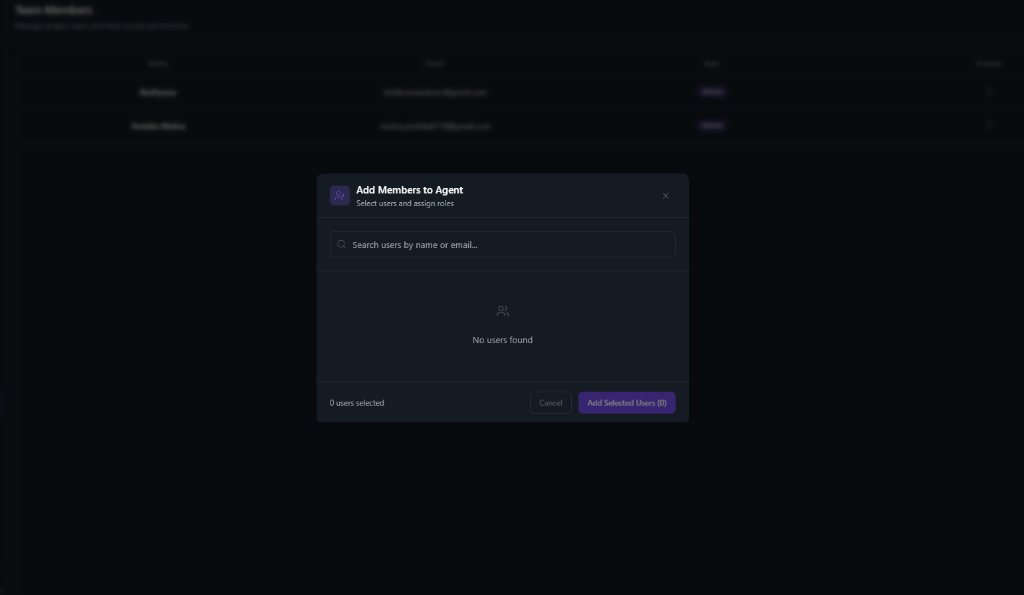
1
Open Team
Open your project. Under Admin, select Team.
2
Add Members
Select Add Members.
3
Choose users and roles
Search by name or email, select users, and assign a project role for each.
4
Confirm
Select Add Selected Users.
From org invite to project access
- An organization admin invites the user from Organization members.
- The user accepts the email invitation and joins the organization.
- A project admin adds them under Admin → Team with a project role.
Manage members
After people are on the project you can:- View all users assigned to the project
- Update roles for project-specific access
- Remove users from the project (they stay in the organization)
Project-level roles
Project roles are independent of organization roles. A Viewer at the organization level can still be Project Admin on a specific project.
Troubleshooting
User not found in search
- Confirm they accepted the organization invitation
- Search with the correct email
- If they just joined, refresh and try again
User cannot access the project
- Confirm they appear on Admin → Team
- Check their project role
- Confirm organization membership is still active
- Confirm they are signed in with the correct account