

Web Voice only
A floating voice launcher. Create a Web Voice channel and add its Deploy Script to the site. No chat bubble required.
Web Voice with Web Chat
A phone icon inside the chat widget. Enable voice on the Web Chat channel. Visitors use the same Web Chat embed.
Both paths need a published Voice workflow. Agent prompt, voice, and tools come from that workflow.
Web Voice only
Use this when the site should open voice, not text chat. Visitors see a floating voice button. This is a separate channel from Web Chat.Create the channel
1
Open Channels
Sign in, open your project, and in the project sidebar select Channels.
2
Create Web Voice
Select Web Voice. Enter a Channel Name. The identifier is set to
voice-widget. Create the channel.3
Configure the agent
Open the channel. On the Web Voice tab, select a Workflow. There is no enable toggle — this channel is always voice. Set appearance, recording, and silence on the same channel, then save.
Deploy the voice launcher
This is the embed for Web Voice alone. It is not the Web Chat snippet.1
Open Deploy Script
Stay on the Web Voice channel. Select the Deploy Script tab.
2
Copy Website Integration Code
Copy Website Integration Code. Paste it just before the closing
</body> tag. Use Preview on that tab to try the launcher.The site shows a floating voice launcher. Copy this code from the Web Voice channel’s Deploy Script tab, not from Web Chat.
Web Voice with Web Chat
Use this when visitors already have the chat widget and you want a phone icon in that widget. You do not add a second Web Voice snippet for this path.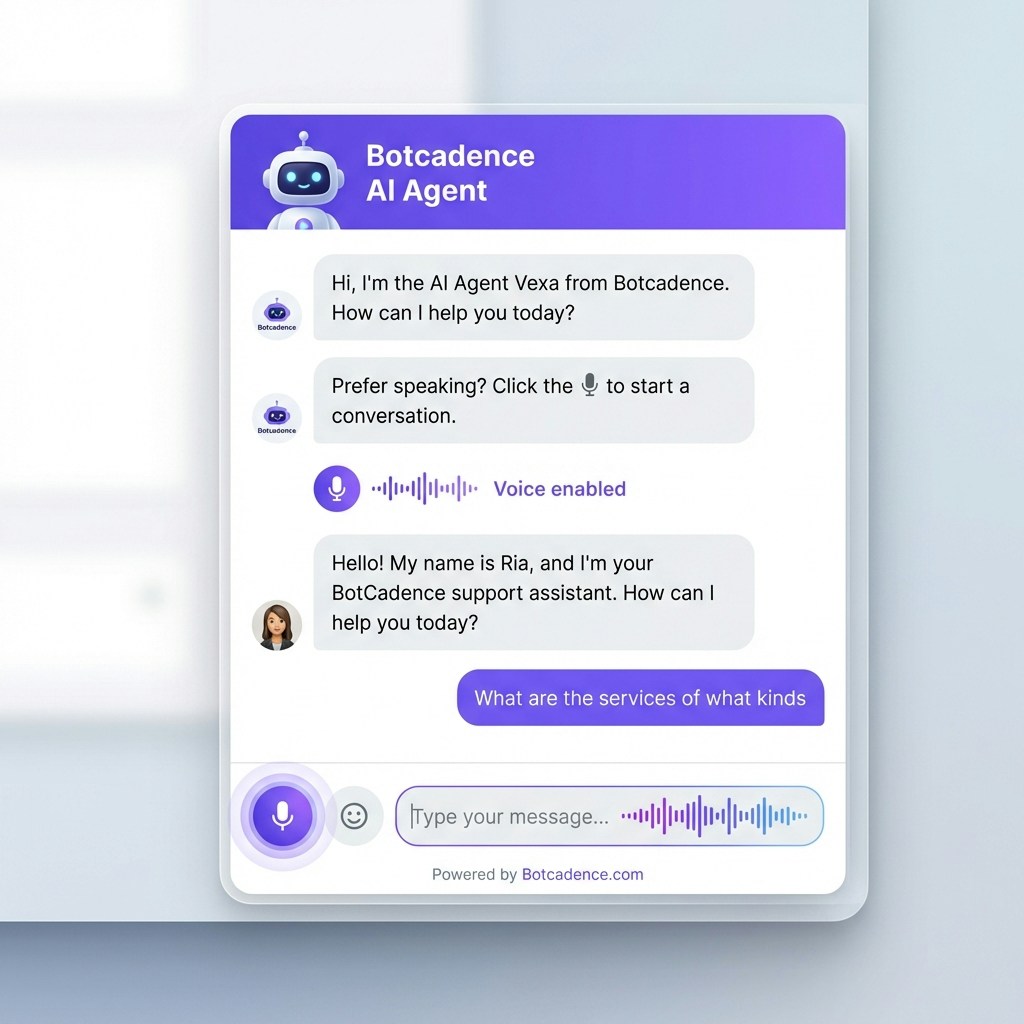
Enable voice on Web Chat
1
Open Channels
In the project sidebar, select Channels.
2
Open Web Chat
Open your Web Chat channel. Select the Web Voice tab.
3
Turn voice on
Enable the voice toggle. Select a Workflow. Optionally set recording and silence threshold. Save.
Deploy (same as Web Chat)
Keep the Web Chat Deploy Script → Website Integration Code on the page. After you save, the existing chat widget shows the phone icon. See Web Chat.Visitors open chat as usual and tap the phone icon to start a voice call. Do not paste the Web Voice–only snippet for this mode.
What is Web Voice?
Web Voice is a browser voice call with your agent: microphone in, spoken reply out. It can appear as:- A standalone launcher (Web Voice channel + its Deploy Script)
- A phone icon inside Web Chat (Web Chat Deploy Script only)
Prerequisites
- An organization and project
- A published Voice workflow
- Permission to edit Channels
- HTTPS on the website (microphone access)
How a voice call works
1
Visitor starts voice
On a voice-only site they click the floating launcher. Inside Web Chat they click the phone icon. The browser may ask for microphone permission.
2
Voice conversation
The agent greets in voice. Speech is transcribed, the agent replies, and replies are spoken. The UI shows listening and speaking.
3
End the call
The visitor ends the call. If they started from Web Chat, text chat can continue on the original thread. The voice call remains a separate Web Voice conversation.
User Experience
Starting a Voice Conversation
Web Voice only: the floating launcher opens the voice UI. With Web Chat:- Chat widget appears with the standard chat interface
- Phone icon is visible in the message input area or as a separate button
- User clicks the phone icon to initiate a voice call
- Browser requests microphone permission (first time only)
- Voice call begins with a greeting from the AI agent
- Visual indicator shows the call is connecting / live in the voice UI
During the Voice Call
While in a voice conversation:- Audio waveform animation shows when the AI is speaking
- Microphone icon indicates when the system is listening
- Live captions of the conversation appear in the voice UI (not merged into the text chat thread)
- Stop button allows users to end the voice call at any time
- Seamless experience with minimal latency
Ending the Voice Call
Users can end the voice call by:- Clicking the stop/end call button
- Closing the widget
- Switching back to text mode (Web Chat path)
Configuration Best Practices
Workflow Selection
Choose a workflow that:- Has clear, conversational voice prompts
- Uses appropriate voice settings for your use case
- Includes necessary tools (knowledge base search, booking, etc.)
- Matches your brand voice and tone
Call Recording
Enable recording if you need to:- Monitor quality and accuracy of AI responses
- Train and improve your AI agent
- Comply with quality assurance requirements
- Review complex or escalated conversations
- You’re handling sensitive information and want to minimize data storage
- Your users prefer not to be recorded
- You don’t need conversation review capabilities
Silence Threshold
Lower threshold (3-6 seconds):- More responsive and engaging
- Better for quick Q&A scenarios
- May interrupt users who are thinking
- Good for simple support queries
- Balanced approach for most use cases
- Gives users time to formulate questions
- Prevents awkward silences
- Recommended for general customer support
- Best for complex conversations
- Allows users to think and respond thoughtfully
- May feel less responsive
- Good for consultative or sales conversations
Troubleshooting
Voice launcher not appearing (Web Voice only)
Voice launcher not appearing (Web Voice only)
- Confirm you created a Web Voice channel, not only Web Chat
- Open that channel’s Deploy Script tab and paste Website Integration Code before
</body> - Select a workflow on the Web Voice tab and save
- Use Preview on Deploy Script, then hard-refresh the live site
Phone icon not appearing in chat widget
Phone icon not appearing in chat widget
Possible causes and solutions:
- Web Voice not enabled: On the Web Chat channel, open the Web Voice tab and turn the toggle on. Save.
- No workflow selected: Make sure you’ve selected a workflow in the Web Voice configuration
- Changes not saved: Ensure you saved after enabling Web Voice
- Cache issue: Clear your browser cache and refresh the page
- Wrong snippet: Phone-in-chat uses the Web Chat Deploy Script, not the Web Voice–only snippet
Microphone permission denied
Microphone permission denied
What to do:
- Browser blocked microphone: Check browser settings to allow microphone access for your website
- System permissions: On some devices, you may need to grant microphone access at the OS level
- HTTPS required: Web Voice requires a secure HTTPS connection - it won’t work on HTTP sites
- Browser compatibility: Ensure you’re using a modern browser that supports Web Audio API
Web Voice works best on Chrome, Firefox, Safari, and Edge. Some older browsers may not support all features.
Voice call not starting
Voice call not starting
What to check:
- Verify microphone permissions are granted
- Check that your workflow is properly configured with voice settings
- Ensure your internet connection is stable
- Try refreshing the page and starting again
- Check browser console for any error messages
- Verify that the workflow has a valid voice model selected
AI not responding to voice input
AI not responding to voice input
Troubleshooting steps:
- Speak clearly: Ensure you’re speaking clearly and at a normal volume
- Check microphone: Test your microphone in other applications
- Silence threshold: The AI may be waiting for the silence threshold - try pausing after speaking
- Background noise: Reduce background noise that might interfere with speech recognition
- Workflow configuration: Verify your workflow has proper voice settings configured
Poor audio quality or lag
Poor audio quality or lag
How to improve:
- Check internet connection: Ensure you have a stable, fast internet connection
- Close other tabs: Reduce browser load by closing unnecessary tabs
- Update browser: Use the latest version of your browser
- Reduce background apps: Close other applications using your microphone or network
- Try different device: Test on a different device to isolate the issue
Can't save Web Voice settings
Can't save Web Voice settings
What to check:
- Verify you have permission to edit channels
- Ensure a workflow is selected (required field)
- Check your internet connection
- Look for any error messages on the page
- Try refreshing the page and configuring again
- Verify all required fields are filled
Technical Requirements
Browser Support
Web Voice works on modern browsers that support:- Web Audio API
- WebRTC
- MediaStream API
- Speech Recognition (optional, for enhanced features)
- Chrome 60+
- Firefox 55+
- Safari 11+
- Edge 79+
Network Requirements
For optimal performance:- Minimum bandwidth: 256 kbps upload/download
- Recommended bandwidth: 512 kbps or higher
- Connection type: Stable broadband or 4G/5G mobile
- Latency: Lower is better (under 200ms recommended)
Security Requirements
- HTTPS required: Web Voice only works on secure HTTPS websites
- Microphone permissions: Users must grant microphone access
- Privacy compliance: Ensure compliance with GDPR, CCPA, and other privacy regulations
Use Cases
Customer Support
Enable customers to:- Ask questions verbally instead of typing
- Get instant voice responses to common queries
- Navigate complex issues with voice guidance
- Access support hands-free while multitasking
Sales and Lead Qualification
Use voice to:- Engage visitors with a more personal touch
- Qualify leads through natural conversation
- Schedule demos and appointments via voice
- Provide product information conversationally
Accessibility
Web Voice improves accessibility for:- Users with mobility impairments who find typing difficult
- Visually impaired users who prefer voice interaction
- Users on mobile devices where typing is cumbersome
- Multilingual users who speak better than they type
E-commerce
Enhance shopping with:- Voice-based product search and recommendations
- Hands-free browsing while cooking, cleaning, etc.
- Quick order status checks via voice
- Voice-guided checkout assistance
Privacy and Compliance
Data Handling
When Web Voice is enabled:- Voice input is converted to text for processing
- Conversation data is stored according to your data retention settings
- If call recording is enabled, audio files are stored securely
- All data is encrypted in transit and at rest
User Consent
Best practices for compliance:- Inform users that voice conversations are with an AI agent
- Disclose if calls are being recorded
- Provide a privacy policy link in your chat widget
- Allow users to opt-out of voice features
- Comply with local regulations (GDPR, CCPA, etc.)
Recording Notifications
If you enable call recording:- Add a notification in your chat widget
- Include recording disclosure in your privacy policy
- Consider adding a verbal notification at the start of calls
- Provide users with access to their recorded conversations (if required)
Tips for Success
Optimize Your Workflow
- Clear prompts: Use conversational, natural language in your workflow prompts
- Voice-friendly responses: Keep AI responses concise and easy to understand when spoken
- Test thoroughly: Test voice conversations extensively before going live
- Handle interruptions: Configure your workflow to handle user interruptions gracefully
Enhance User Experience
- Provide guidance: Add a tooltip or help text explaining how to use voice features
- Visual feedback: Ensure clear visual indicators for listening, speaking, and processing states
- Fallback options: When using Web Chat, text chat remains available
- Mobile optimization: Test thoroughly on mobile devices where voice is especially useful
Monitor and Improve
- Review recordings: If enabled, review call recordings to identify improvement areas
- Track metrics: Monitor voice call usage, duration, and success rates
- Gather feedback: Ask users about their voice experience
- Iterate workflow: Continuously refine your workflow based on real conversations
Performance Optimization
- Optimize silence threshold: Adjust based on actual user behavior patterns
- Balance quality and speed: Choose voice models that balance quality with response time
- Minimize latency: Ensure your workflow is optimized for quick responses
- Test under load: Verify performance during peak usage times
Summary
Web Voice can run:- Alone — Channels → Web Voice → Deploy Script → Website Integration Code (floating voice launcher)
- With Web Chat — Channels → Web Chat → Web Voice tab → enable + workflow → keep the Web Chat embed (phone icon)
Quick Reference
Web Voice only:- Channels → create Web Voice
- Web Voice tab → select a workflow → save
- Deploy Script → copy Website Integration Code → paste before
</body>
- Channels → Web Chat → Web Voice tab
- Turn the toggle on, select a workflow, save
- Keep the Web Chat snippet on the site
- HTTPS website
- Modern browser with microphone support
- Configured workflow with voice settings
- User microphone permission