> ## Documentation Index
> Fetch the complete documentation index at: https://docs.botcadence.com/llms.txt
> Use this file to discover all available pages before exploring further.
# Manage Campaign
> Launch, monitor, and analyze your voice campaigns.
Once you have created a voice campaign, you can launch it, monitor its progress in real-time, and analyze detailed performance metrics.
## Launching a Campaign
After creating a campaign, it will initially be in a **Draft** state. To start the campaign:
1. Navigate to the **Campaigns** list.
2. Locate your campaign in the table.
3. Click the **Actions** menu (three dots) on the right.
4. Select **Launch**.
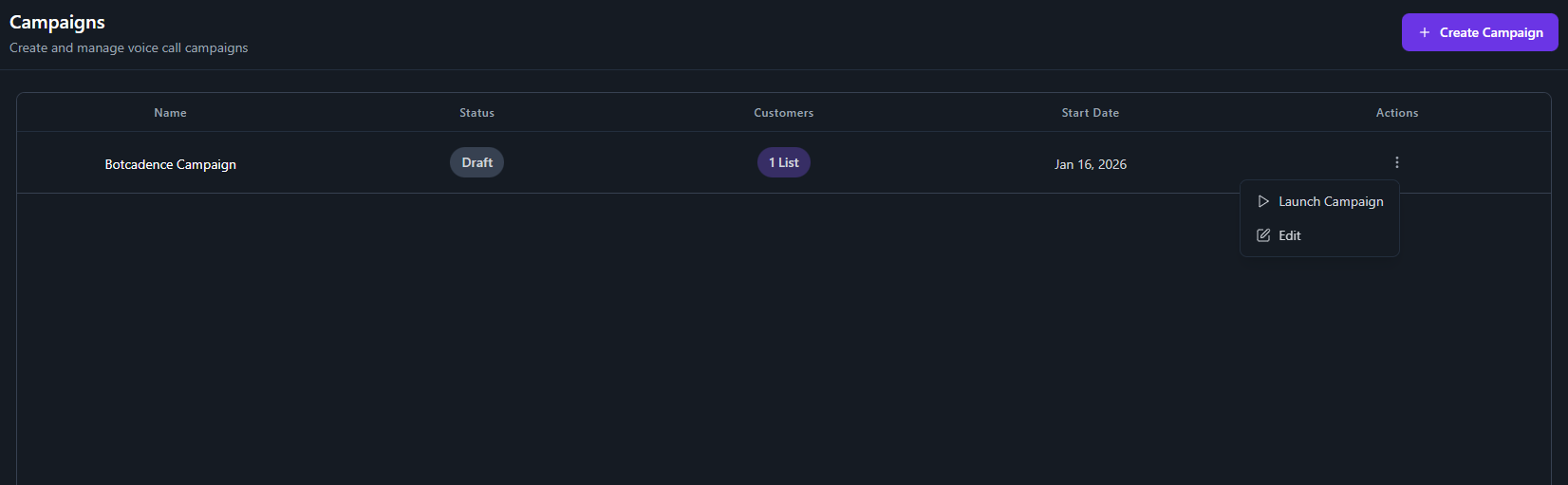 Once launched, the campaign status will update, and the system will begin making calls according to your configured schedule and settings.
## Monitoring & Analytics
Click on any campaign name to view its dashboard. The dashboard provides a comprehensive view of the campaign's performance.
### Analytics Overview
The **Analytics** tab shows key metrics and a graphical representation of your campaign's activity.
Once launched, the campaign status will update, and the system will begin making calls according to your configured schedule and settings.
## Monitoring & Analytics
Click on any campaign name to view its dashboard. The dashboard provides a comprehensive view of the campaign's performance.
### Analytics Overview
The **Analytics** tab shows key metrics and a graphical representation of your campaign's activity.
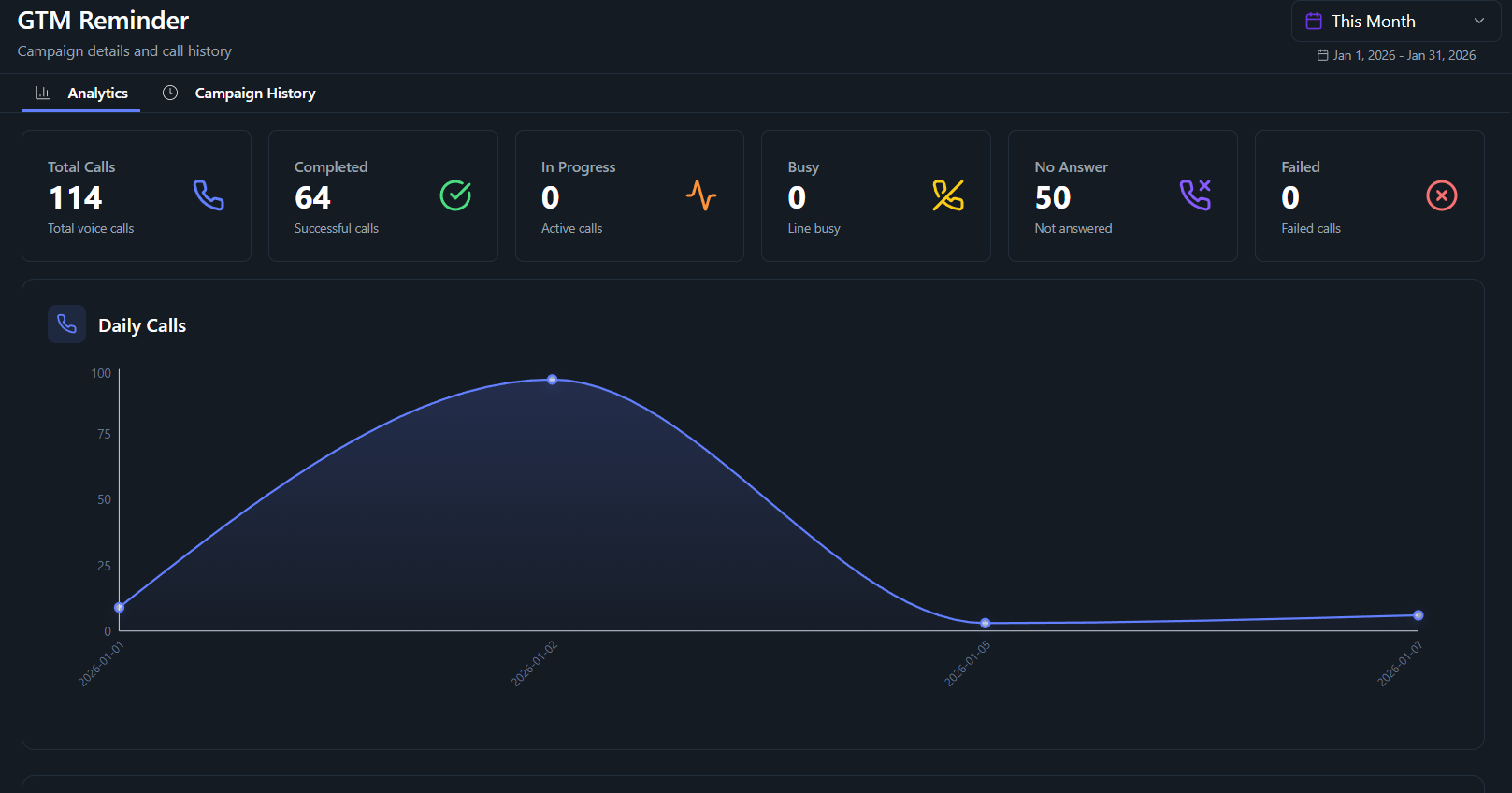 **Key Metrics:**
* **Total Calls**: The total number of calls initiated by the campaign.
* **Completed**: Successful calls where the agent connected with the user.
* **In Progress**: Valid calls currently active.
* **Busy**: Calls where the line was busy.
* **No Answer**: Calls that were not answered by the customer.
* **Failed**: Calls that failed due to technical issues or errors.
**Daily Calls Graph:**
A chart visualization showing the volume of calls made over time. You can filter this view by date range (e.g., Today, This Week, This Month).
## Campaign History
The **Campaign History** tab provides a detailed log of every call made within the campaign. This allows you to:
* Review individual call statuses.
* Access call recordings (if enabled).
* Analyze specific interactions for quality assurance.
**Key Metrics:**
* **Total Calls**: The total number of calls initiated by the campaign.
* **Completed**: Successful calls where the agent connected with the user.
* **In Progress**: Valid calls currently active.
* **Busy**: Calls where the line was busy.
* **No Answer**: Calls that were not answered by the customer.
* **Failed**: Calls that failed due to technical issues or errors.
**Daily Calls Graph:**
A chart visualization showing the volume of calls made over time. You can filter this view by date range (e.g., Today, This Week, This Month).
## Campaign History
The **Campaign History** tab provides a detailed log of every call made within the campaign. This allows you to:
* Review individual call statuses.
* Access call recordings (if enabled).
* Analyze specific interactions for quality assurance.