> ## Documentation Index
> Fetch the complete documentation index at: https://docs.botcadence.com/llms.txt
> Use this file to discover all available pages before exploring further.
# Team
> Add and manage project team members and roles
**Team** (page title **Team Members**) controls who can access this project and what they can do inside it.
In the project sidebar, under **Admin**, select **Team**. Viewing the list and changing members requires project admin access.
## Prerequisites
Users must already belong to your organization and have accepted their invitation. Invite them first under [Organization members](/docs/organization/members).
Users must accept their organization invitation before you can assign them to any project.
## Add members
Once users are in the organization, assign them to this project:
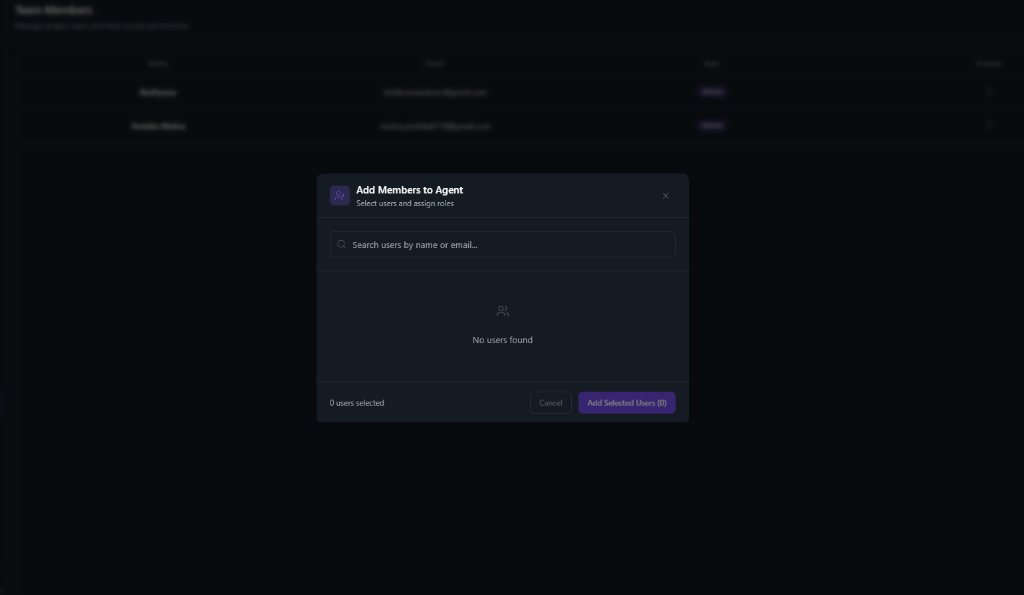 Open your project. Under **Admin**, select **Team**.
Select **Add Members**.
Search by name or email, select users, and assign a project role for each.
Select **Add Selected Users**.
You can select multiple users at once and add them in a single action.
## From org invite to project access
```mermaid theme={null}
graph TD
A[Invite User to Organization] --> B[User Receives Email Invitation]
B --> C[User Accepts Invitation]
C --> D[User Joins Organization]
D --> E[Admin Adds User to Project]
E --> F[User Can Access Project]
```
1. An organization admin invites the user from [Organization members](/docs/organization/members).
2. The user accepts the email invitation and joins the organization.
3. A project admin adds them under **Admin → Team** with a project role.
## Manage members
After people are on the project you can:
* **View** all users assigned to the project
* **Update roles** for project-specific access
* **Remove** users from the project (they stay in the organization)
## Project-level roles
| Role | Permissions |
| :---------------- | :-------------------------------------------------------------------------------- |
| **Project Admin** | Full control over the project, including settings, team management, and deletion. |
| **Editor** | Can modify project configurations, knowledge base, workflows, and agents. |
| **Viewer** | Read-only access to project data and analytics. |
Project roles are independent of organization roles. A Viewer at the organization level can still be Project Admin on a specific project.
## Troubleshooting
### User not found in search
* Confirm they accepted the organization invitation
* Search with the correct email
* If they just joined, refresh and try again
### User cannot access the project
1. Confirm they appear on **Admin → Team**
2. Check their project role
3. Confirm organization membership is still active
4. Confirm they are signed in with the correct account
Removing a user from the organization removes them from all projects in that organization.
## Related
* [Organization members](/docs/organization/members)
* [Project Settings](/docs/admin/settings)
* [Create a project](/docs/projects/create)
* [Organization setup](/docs/organization/setup)
Open your project. Under **Admin**, select **Team**.
Select **Add Members**.
Search by name or email, select users, and assign a project role for each.
Select **Add Selected Users**.
You can select multiple users at once and add them in a single action.
## From org invite to project access
```mermaid theme={null}
graph TD
A[Invite User to Organization] --> B[User Receives Email Invitation]
B --> C[User Accepts Invitation]
C --> D[User Joins Organization]
D --> E[Admin Adds User to Project]
E --> F[User Can Access Project]
```
1. An organization admin invites the user from [Organization members](/docs/organization/members).
2. The user accepts the email invitation and joins the organization.
3. A project admin adds them under **Admin → Team** with a project role.
## Manage members
After people are on the project you can:
* **View** all users assigned to the project
* **Update roles** for project-specific access
* **Remove** users from the project (they stay in the organization)
## Project-level roles
| Role | Permissions |
| :---------------- | :-------------------------------------------------------------------------------- |
| **Project Admin** | Full control over the project, including settings, team management, and deletion. |
| **Editor** | Can modify project configurations, knowledge base, workflows, and agents. |
| **Viewer** | Read-only access to project data and analytics. |
Project roles are independent of organization roles. A Viewer at the organization level can still be Project Admin on a specific project.
## Troubleshooting
### User not found in search
* Confirm they accepted the organization invitation
* Search with the correct email
* If they just joined, refresh and try again
### User cannot access the project
1. Confirm they appear on **Admin → Team**
2. Check their project role
3. Confirm organization membership is still active
4. Confirm they are signed in with the correct account
Removing a user from the organization removes them from all projects in that organization.
## Related
* [Organization members](/docs/organization/members)
* [Project Settings](/docs/admin/settings)
* [Create a project](/docs/projects/create)
* [Organization setup](/docs/organization/setup)